


If you didn’t know, starting from iOS 13, Apple has added a new feature to extend battery life and reduce overheating when charging the phone overnight. This is to relieve the “stress” and reduce charging time. Additionally, researchers also recommend that users should only charge up to 80% to prolong the battery’s lifespan.
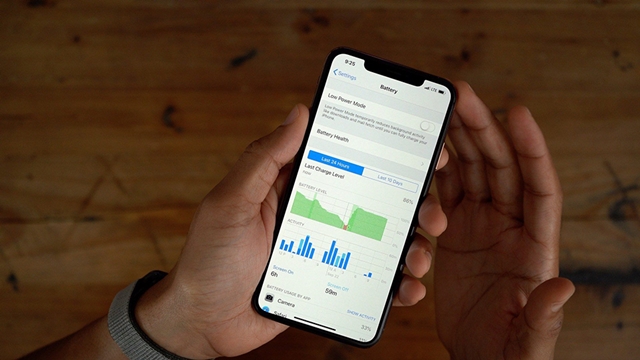
However, you should not rely too much on Apple’s battery longevity feature but also adjust some settings to further improve battery life for your iPhone, which are quite simple as follows.
Use Dark Mode
Considered the most anticipated feature in iOS 13, Dark Mode is trending and is adopted by many companies, from Apple to Google and even Microsoft. Almost everything can be switched to dark mode, helping to reduce eye strain and save energy (for devices using OLED screens).
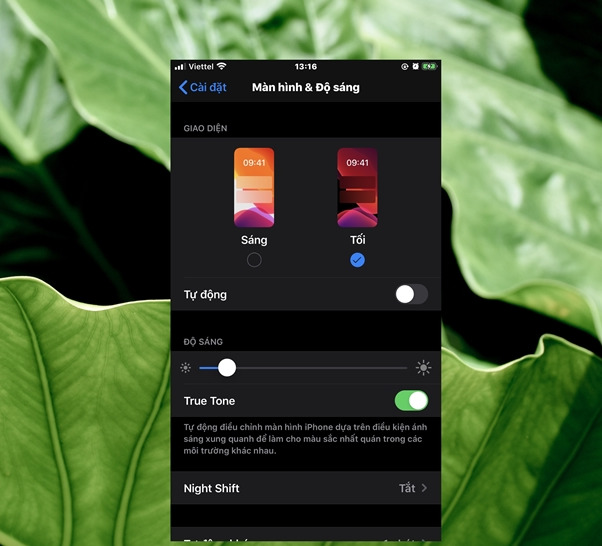
The Dark Mode on iPhone can be easily activated from the Control Center or in the Settings app. In Settings, navigate to Display & Brightness and tap the Dark option under Appearance. In the Control Center, press and hold the brightness slider, then tap Dark Mode to turn it on or off.
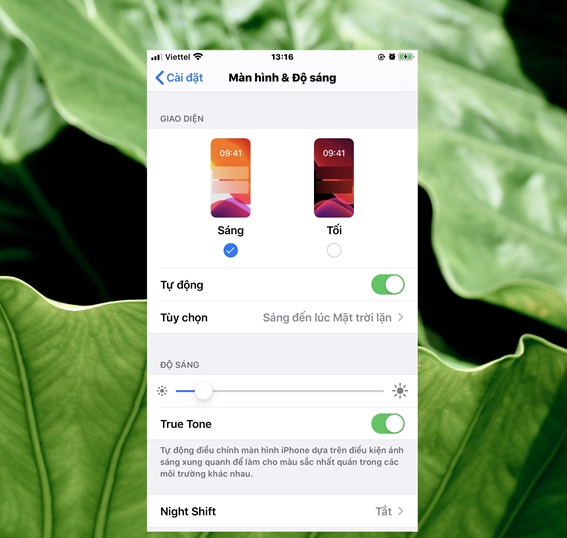
You can also customize to have Dark Mode automatically turn on during a specific time of day. Just turn on the Automatic option.
Turn Off Dynamic Wallpaper
Although it’s a nice and attractive feature, the “Dynamic Wallpaper” feature is also a major cause of rapid battery drain on the iPhone. Therefore, disabling it and using a static wallpaper is necessary to improve battery life for the device.
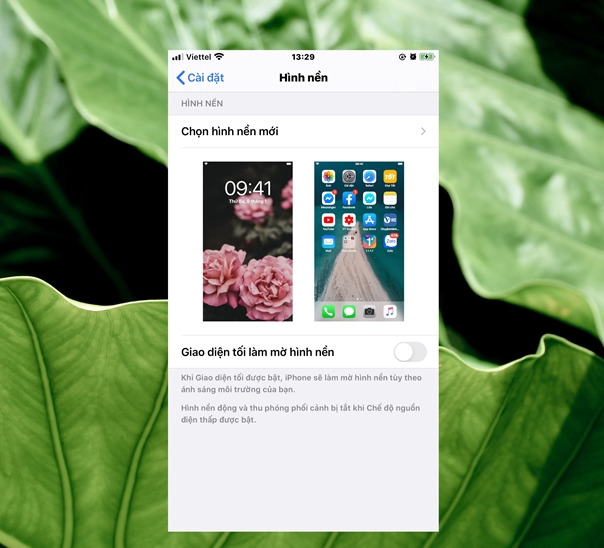
To disable this feature, go to Settings > Wallpaper > Choose New Wallpaper.
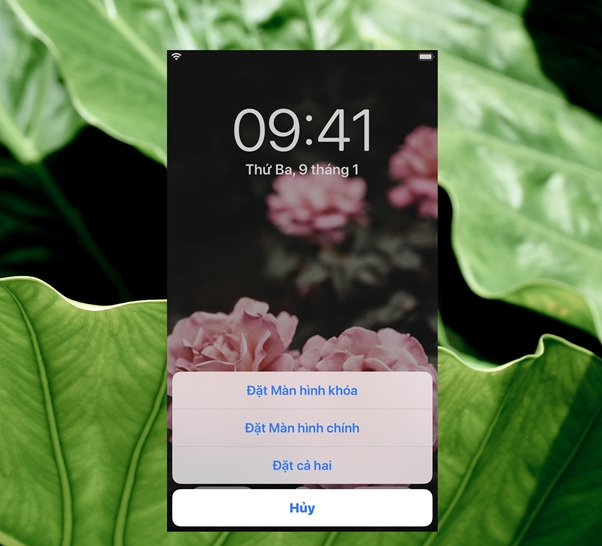
Choose a static wallpaper from the system or from your photo album and set it as your wallpaper or lock screen wallpaper.
Turn Off Motion Effects
Motion effects on iOS can be really nice but they also impact the battery life of the iPhone. Therefore, if you don’t care much about the experience of effects, it’s advisable to turn them off.
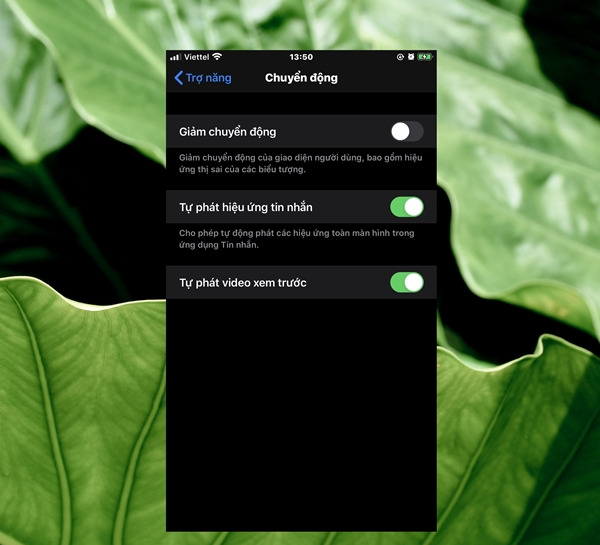
To turn off motion effects, go to Settings > Accessibility > Motion, then enable the “Reduce Motion” option.
Use Low Power Mode
According to Apple, “Low Power Mode” can extend battery life by an additional 3 hours, so when your battery is low and you can’t charge it immediately, you can choose to activate this feature in Settings > Battery > Low Power Mode.
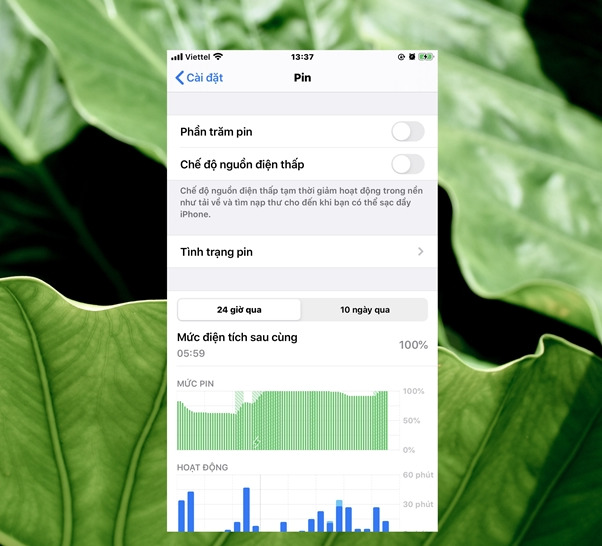
You also shouldn’t worry too much; to make it convenient for users, you will receive a reminder to turn on the mode when the battery is at 20%, and disable it when it exceeds 80%.
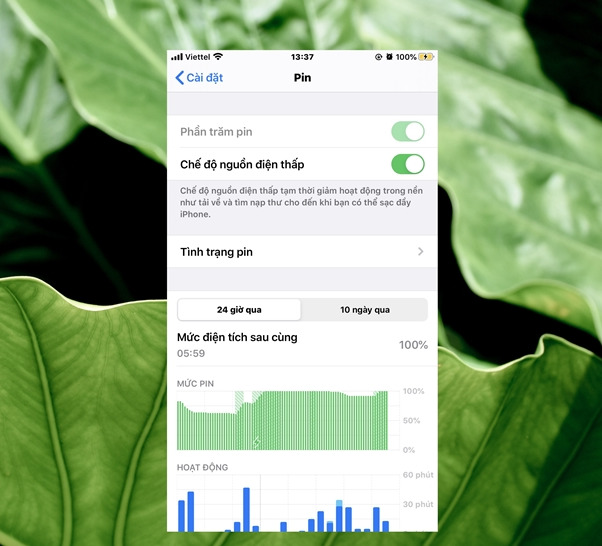
When Low Power Mode is activated, your device will operate at maximum low performance, meaning your screen brightness will be reduced, and the auto-lock time will be quicker. Applications in this mode will automatically disable battery-draining features and much more.
Turn Off “Raise to Wake” Feature
Considered one of the quite convenient features on iOS, this repetitive screen activation will affect the battery life of the device. Because most of the time, your phone screen will always be on even when you don’t want it to be. Therefore, you should choose to turn it off if extending battery life is more important to you.
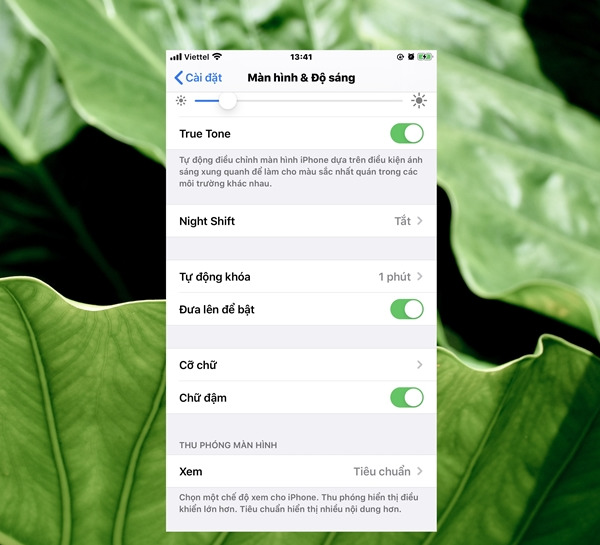
To turn off the “Raise to Wake” feature, go to Settings > Display & Brightness, then disable it at the “Raise to Wake” option.
Turn Off “Background App Refresh” Feature
Recent iOS versions have improved multitasking capabilities, allowing apps to continuously refresh content. However, not all apps need to refresh continuously, so for unnecessary apps, you can turn it off. To turn off background app refresh, go to Settings > General > Background App Refresh.
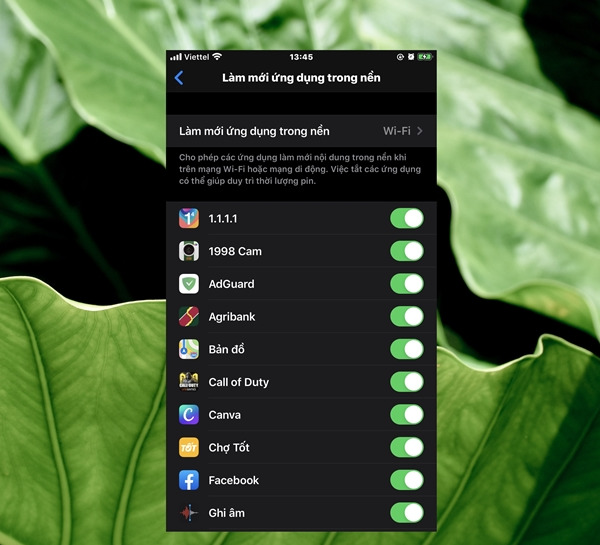
Here, you can see which applications you don’t use frequently and turn off the refresh feature to save battery.
Disable Location Services
When you start selecting app settings, they often prompt users to grant different access rights such as location. However, apps that use location services can significantly impact battery life. Therefore, you should reconsider which apps have access to your device’s location.
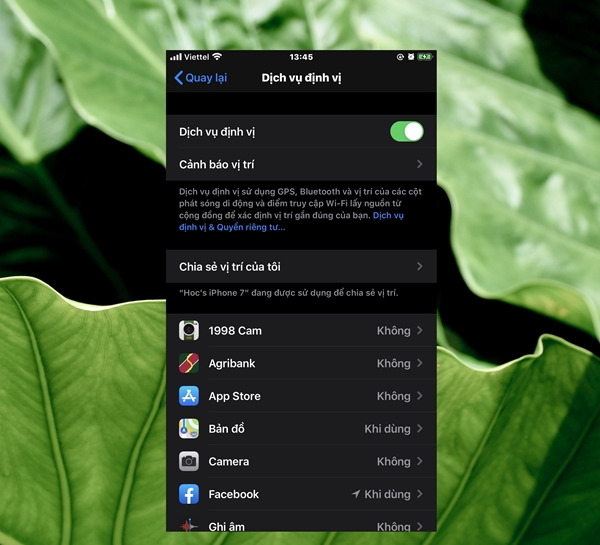
Go to Settings > Privacy > Location Services. Here there are many options; if you frequently use an app, choose While Using the App. For rarely used apps, you can select Ask Next Time.
Other Small Suggestions
– If you hardly use Bluetooth, turn it off.
– If you only use Wi-Fi, you should turn off mobile data.
– Dimming the screen helps increase battery life. You can lower the default screen brightness based on your preferences or enable Auto-Brightness to allow the screen to adjust brightness based on current lighting conditions.
– Apple recommends users to go through at least one full charge cycle each month (charging to 100% and then completely draining the battery). So, if you haven’t done it, now might be a good time to do so.