


When you’re downloading a few movies or games and the speed is too slow, it could be due to a program using too much internet bandwidth. In this article, I will guide you on how to check which programs are using the most internet bandwidth so you can “resolve” them.
Using Task Manager
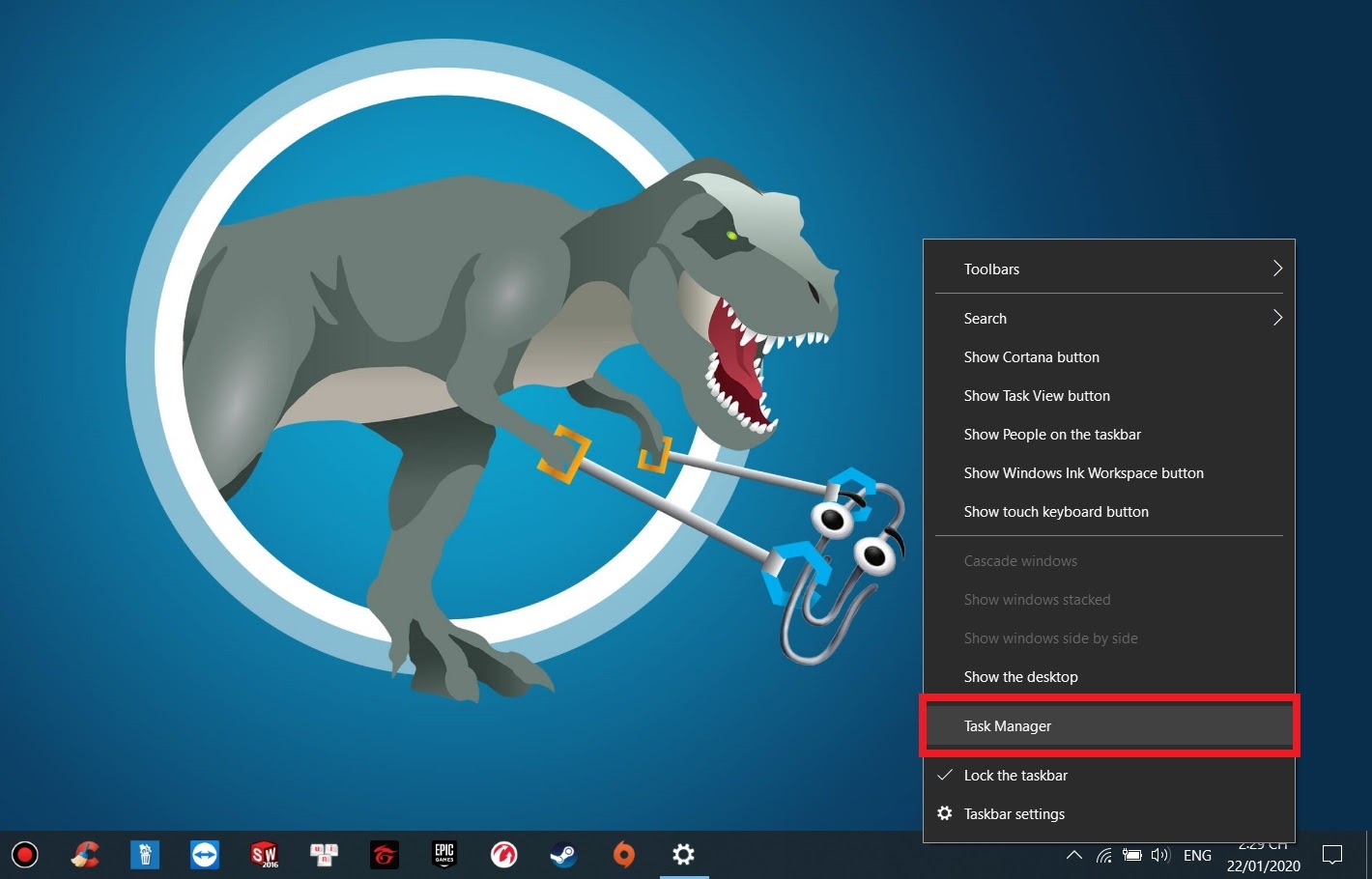
First, right-click on the taskbar and select to open Task Manager.
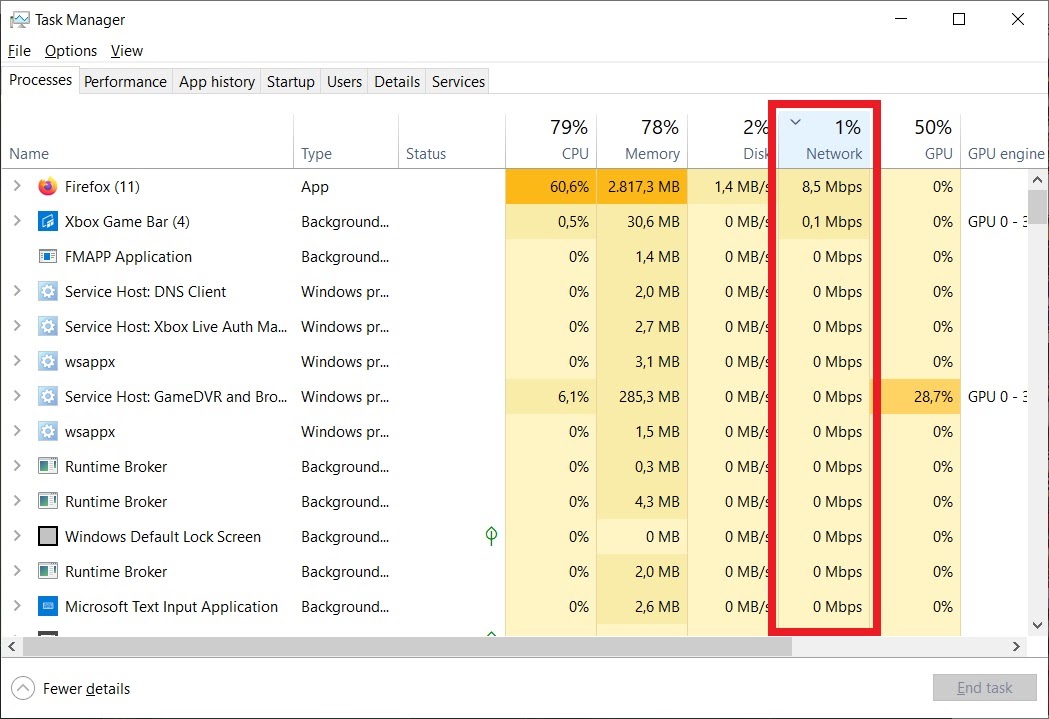
Next, in the Processes tab, click on the top of the Network column to have Windows sort the programs that are using the most bandwidth.
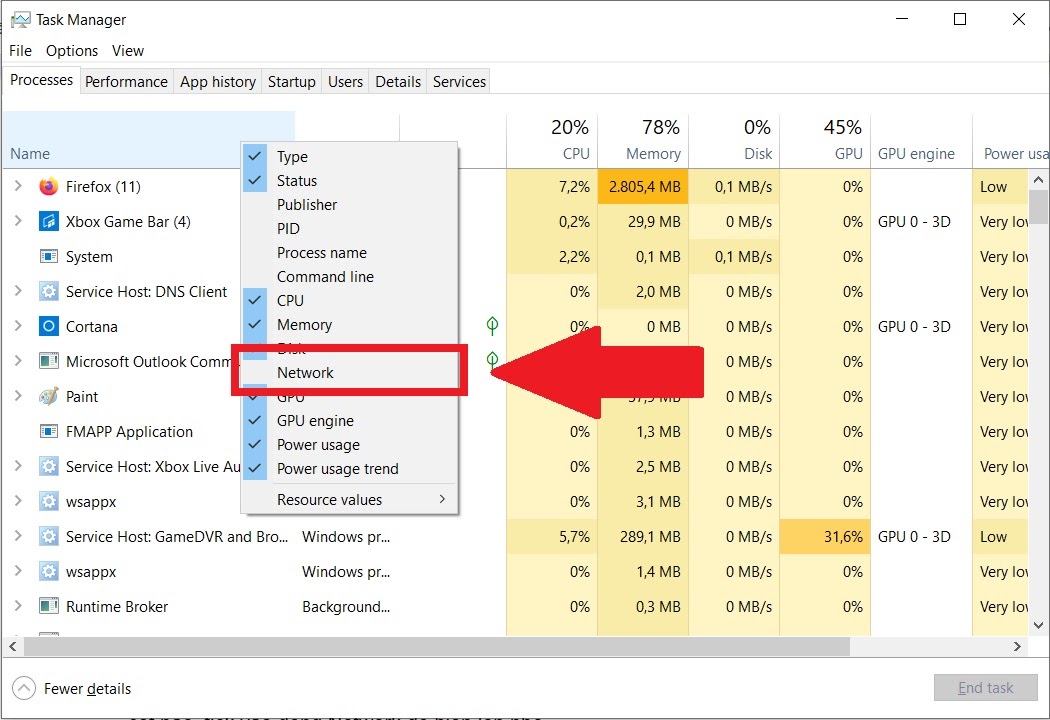
If your Task Manager does not display the Network column, right-click on any column header and check the Network option to display it.
Using Resource Monitor
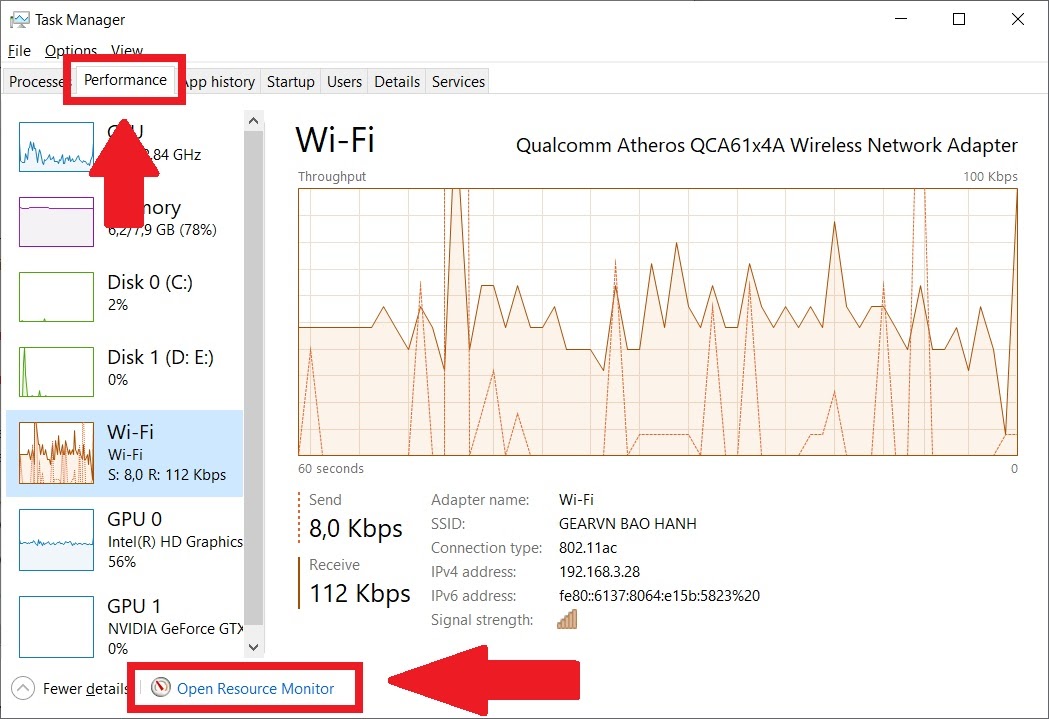
Basically, the Network tab only shows programs that are using a large amount of bandwidth measured in Mbps. If you want to see more detailed information, you can switch to the Performance tab and select Open Resource Monitor below.
Next, select the Network tab for detailed statistics. In this tab, bandwidth will be measured in B/sec (Bytes/second) so you can see exactly how much bandwidth each application is using.
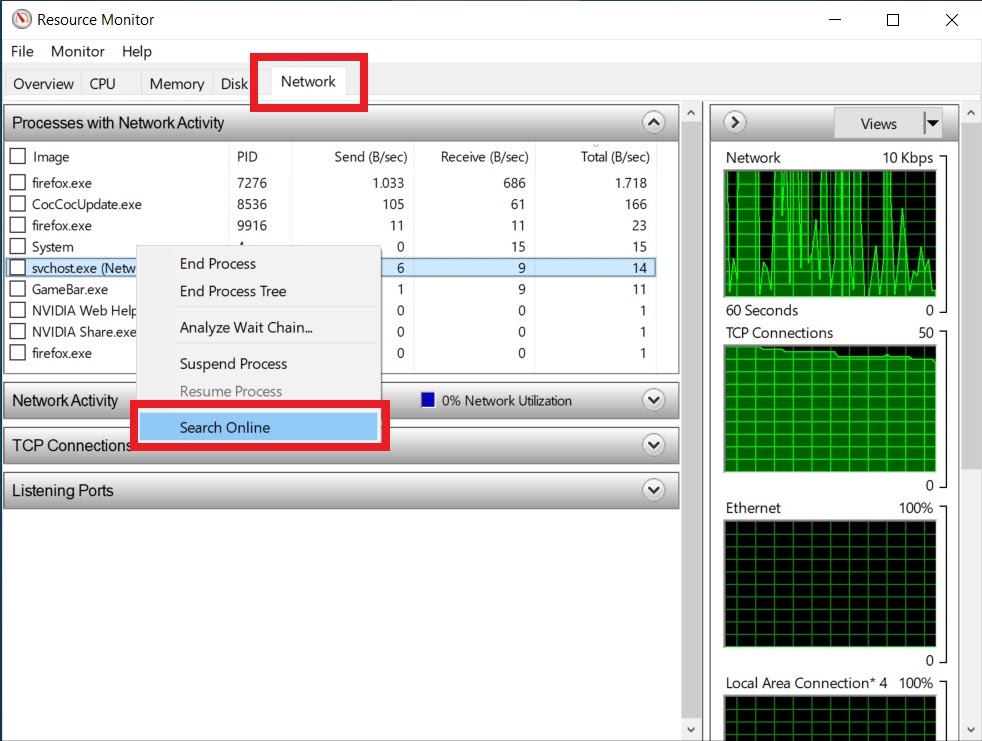
If you suspect an unfamiliar program is running on your machine and consuming bandwidth, you can right-click on it and select search online. Since the results will often be in English, you’ll need a bit of vocabulary or a dictionary to help you out.
Check the data usage of programs over the last 30 days
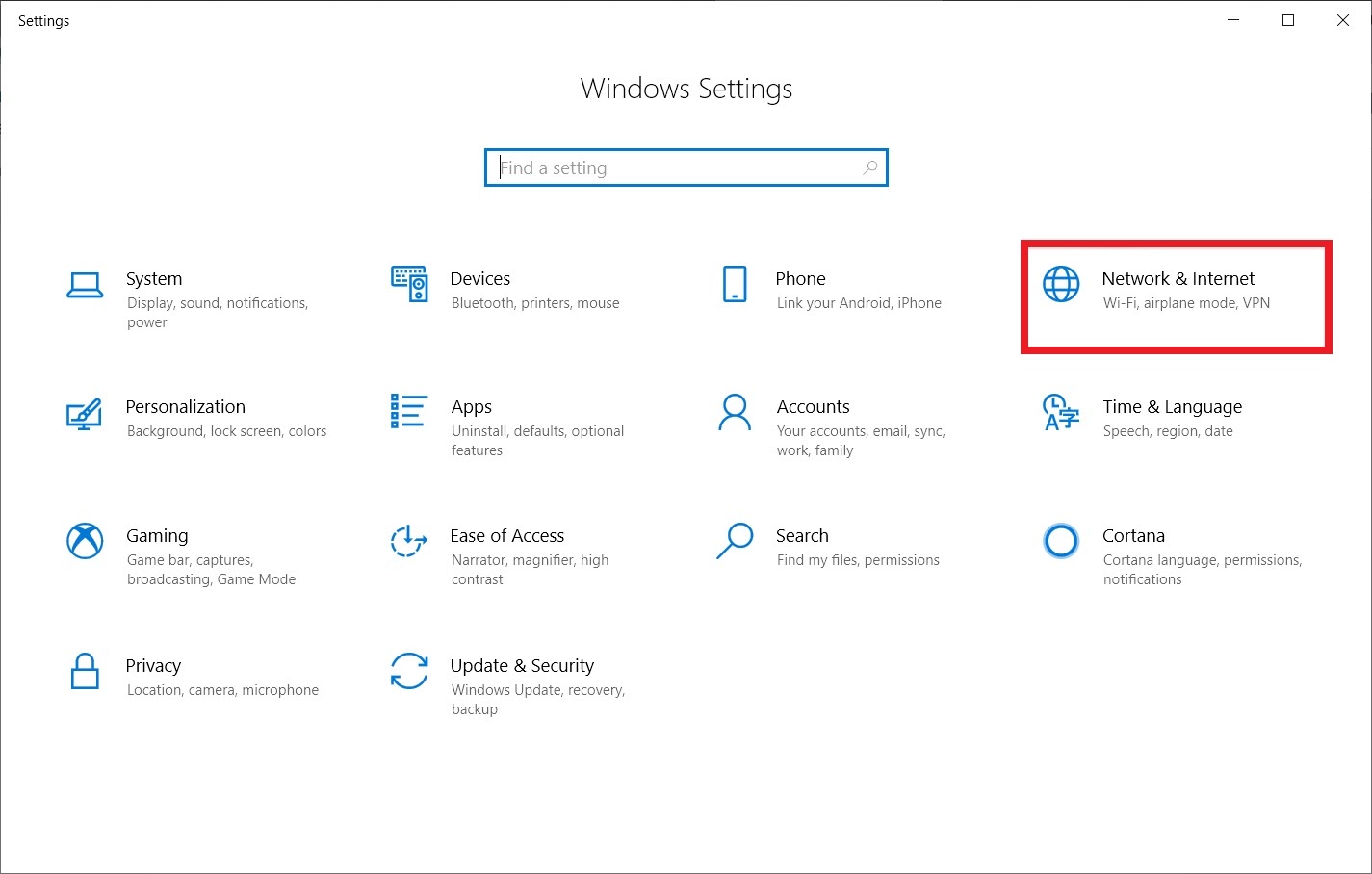
Additionally, Windows 10 will log how much data programs have used over the last month. You can check this by opening Settings → Network & Internet.
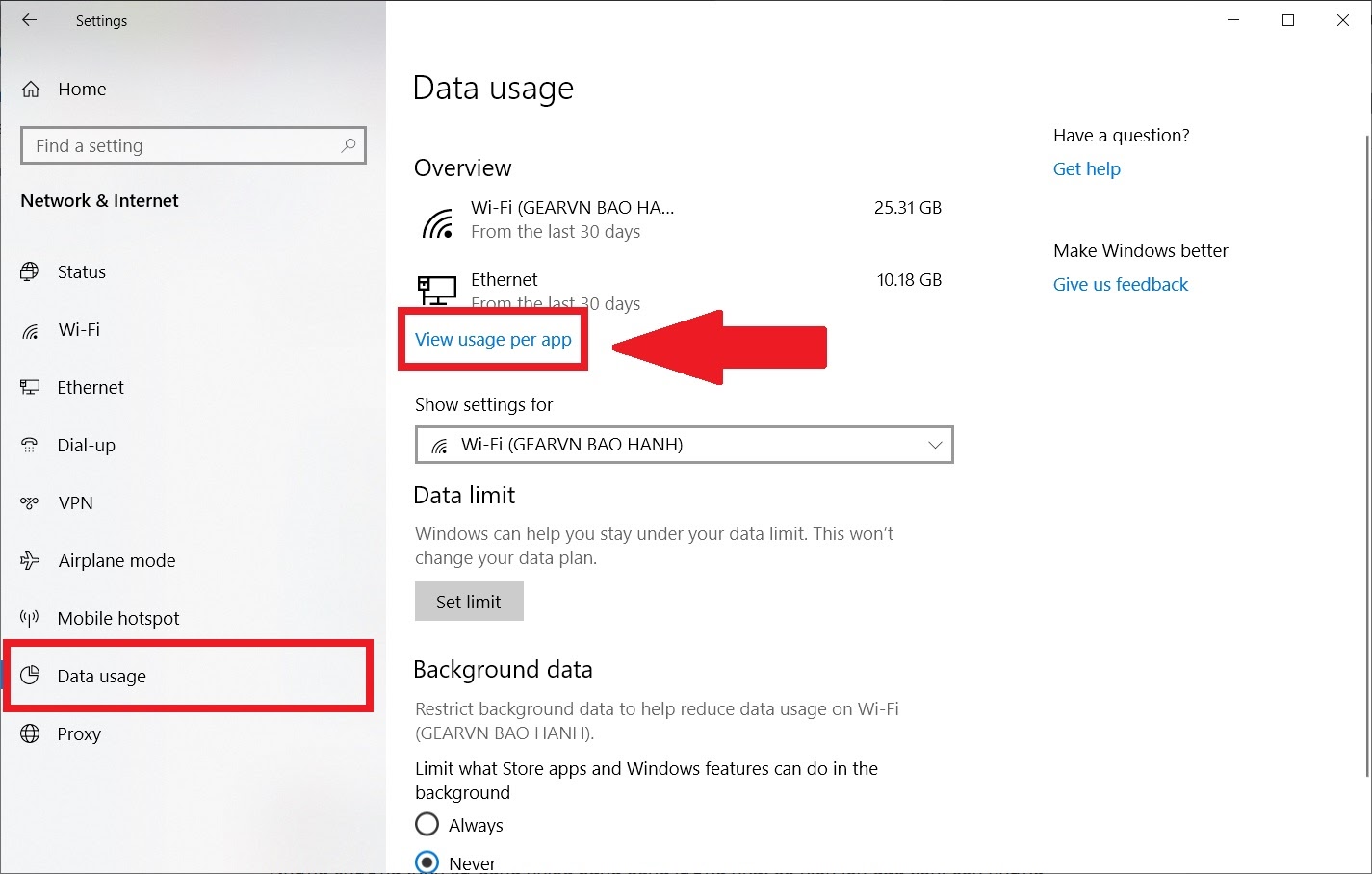
Next, select Data Usage and click on View usage per app.
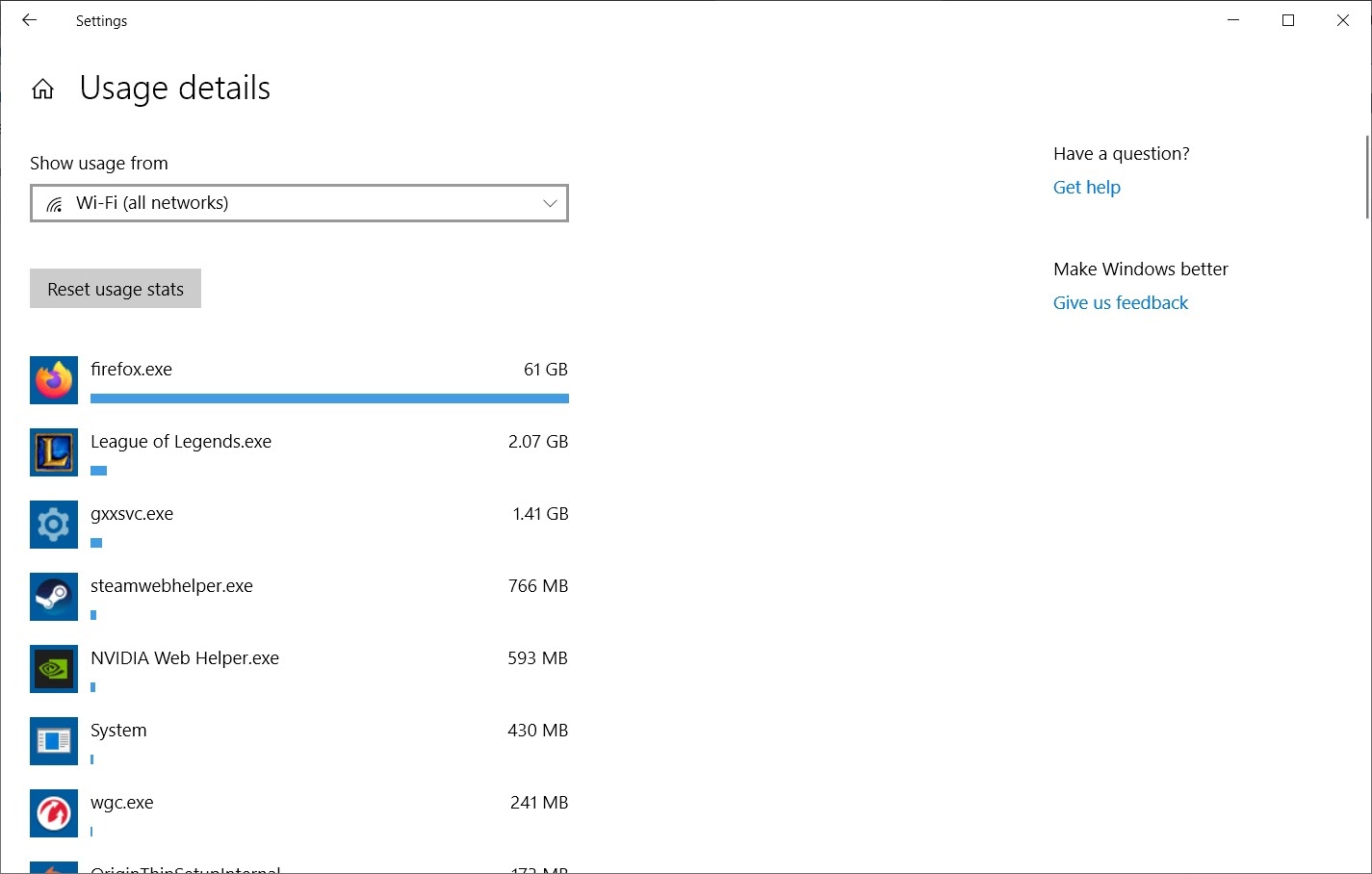
The programs that use the most bandwidth will appear at the top, while those that use less will be listed below. You can use this information to identify the “culprit” slowing down your machine’s bandwidth.
Good luck!
Source: How To Geek, Gearvn