


However, Microsoft does not provide us with a simple way to add a clock directly in Windows 10, making many people who like it feel helpless.
But that doesn’t mean we should give up on this easy beautification task. Today, I will guide you on how to attach a digital clock to your desktop using a free application called 8GadgetPack.
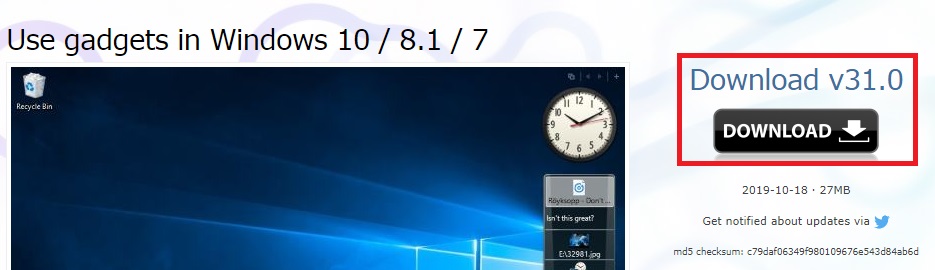
Step 1: First, download 8GadgetPack here. Then select Download to start the download.
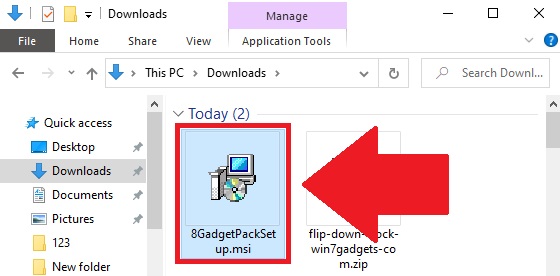
After downloading, open the file 8GadgetPackSetup to proceed with the installation.
Step 2: After successful installation, a Sidebar will appear on the right side of the desktop containing some templates for you to choose from, like clocks, weather forecasts, etc.
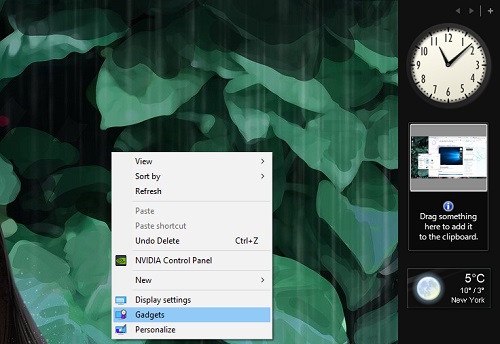
However, this is a round clock. If you want a digital clock, you need to take one more step, which is to download the type of clock you like here. There are many different types of clocks for you to choose from.
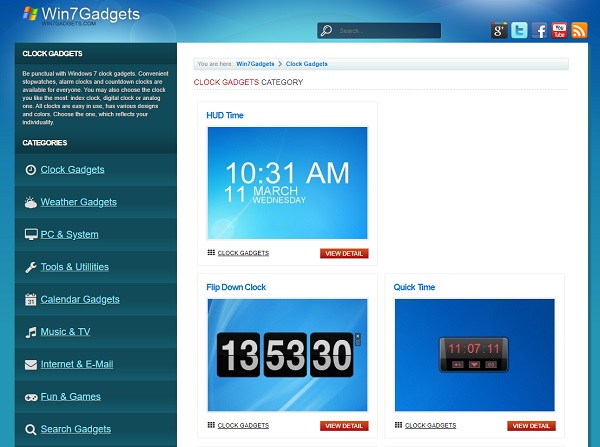
For example, I like the style of the Flip Down Clock, so I will download it. Some clock files may be Zip files, so if it’s a Zip file, make sure to extract it.
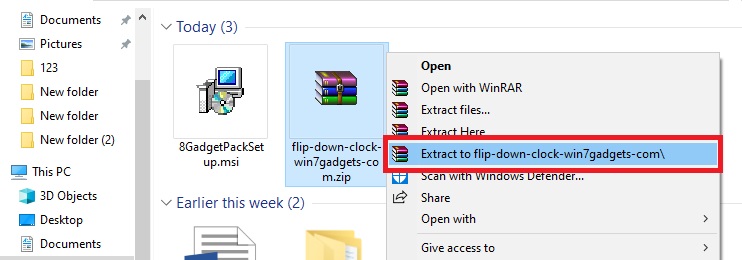
After extracting, open the file inside and select Install to install it.
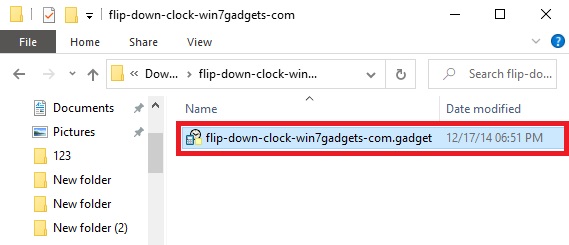
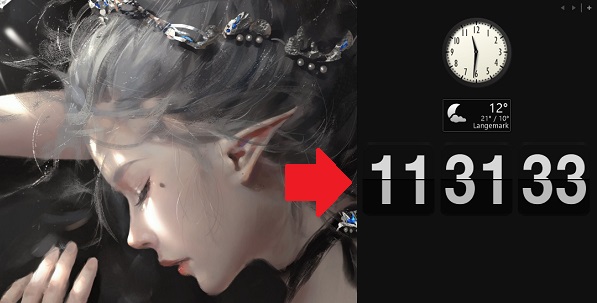
Your clock will now display in the Sidebar, and all you need to do is drag it out to your desktop and place it where you like.
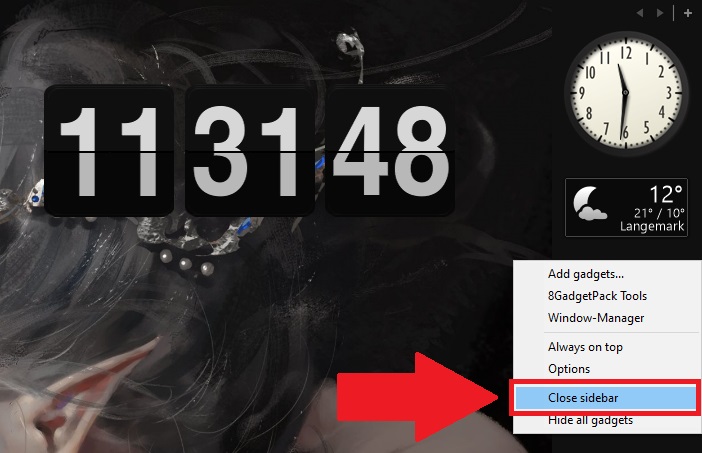
After that, right-click on the Sidebar and select Close sidebar to close the Sidebar.
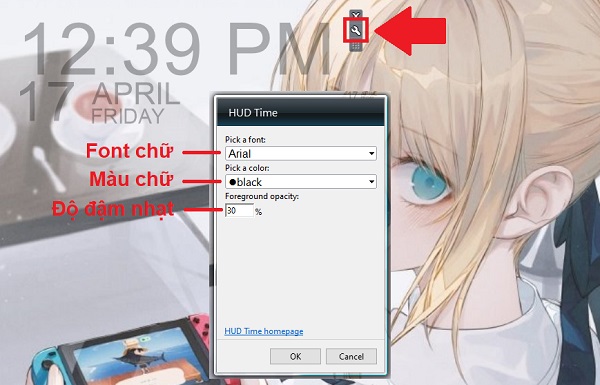
If you don’t like the clock style above, you can try the HUD Time. This type of clock looks simpler, and you can customize the color and intensity of the text.
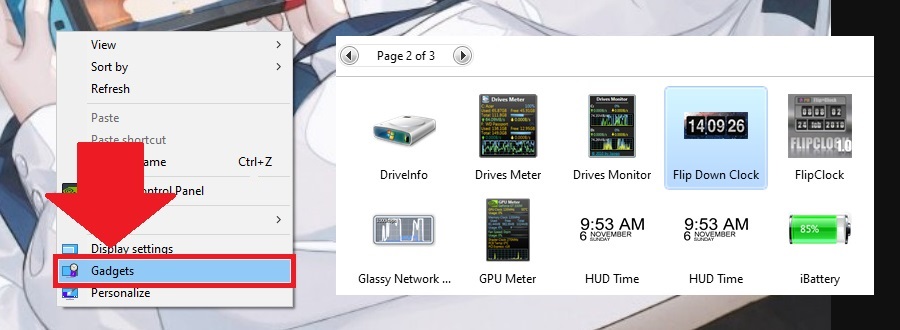
If you accidentally close the clock and want to open it again, right-click on the desktop, select Gadgets, then choose the clock again.
This is the result!
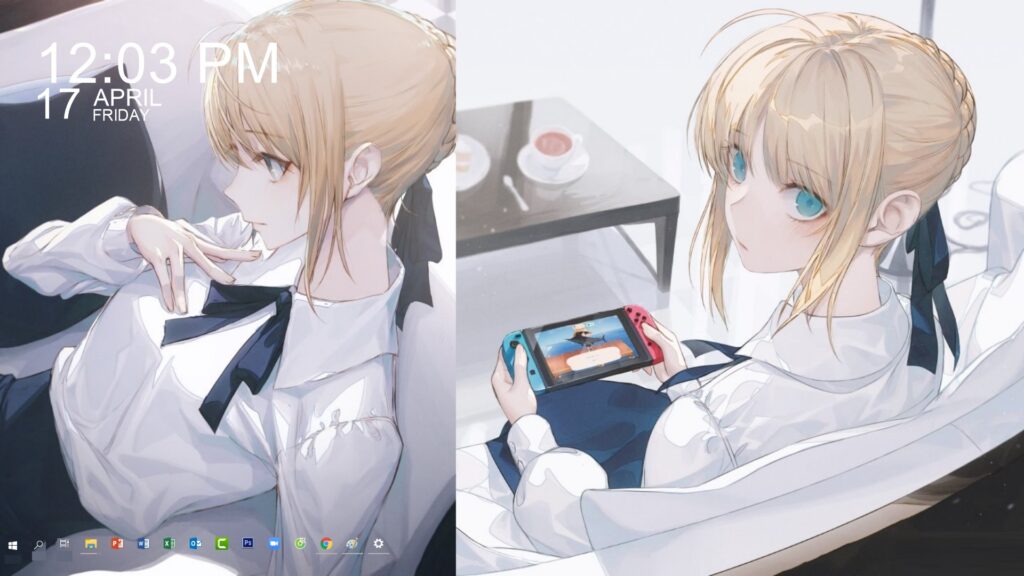
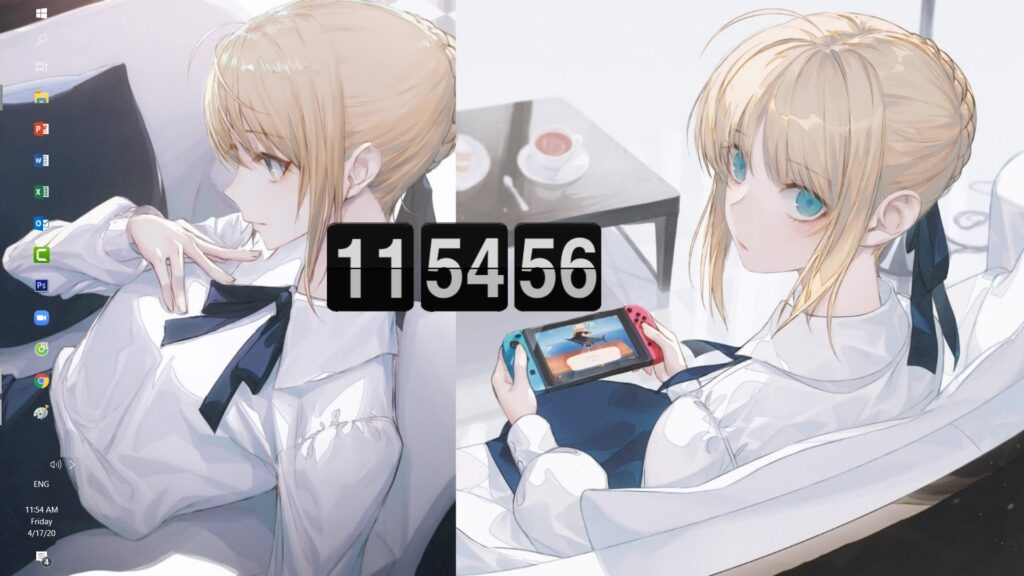
So, I have finished guiding you on how to attach a decorative digital clock to your desktop. Wish you success!
According to Gearvn