


When you try using music album CDs, it definitely works, but when you try with old games, the machine says it can’t run them even though the specs are quite decent. In this article, I will explain why most classic games cannot run on modern computers.
Why Can’t Old Games Run?
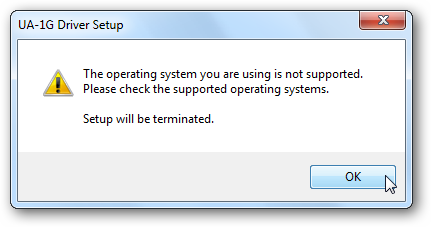
Typically, you will encounter one of two situations: either you can’t install the game on the machine or you install the game successfully but can’t play it. In the case of being unable to install the game, the reason is quite simple, as many old games are unaware of the existence of newer versions of Windows. Additionally, old Digital Rights Management (DRM) programs are also incompatible with newer operating systems, preventing us from installing the games on the machine.
Moreover, some games back in the day were created for 16-bit systems. Although Microsoft has programmed Windows 64-bit to emulate a 32-bit environment, it still cannot handle 16-bit games, folks.
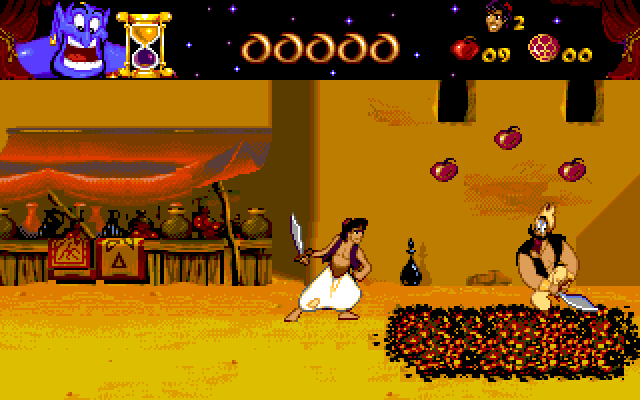
In the case where you installed the game but can’t play it, it may be due to the game’s programming not being compatible with the new version of Windows. Currently, most computers using 64-bit CPUs and Windows versions do not encounter issues when running 32-bit games. However, some old games require .dll (Dynamic Link Library) files that exist in older 32-bit Windows versions to function, but those .dll files have been changed or removed by Microsoft from newer Windows versions. As a result, even if you successfully install the game, you still can’t play it.
How to Play Old Games on New Machines
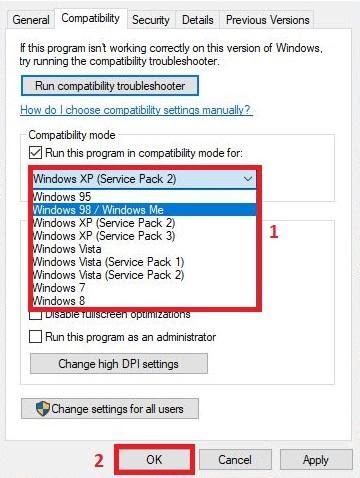
Although there are many barriers preventing us from playing old games, there are still ways to do it. You can use the built-in Compatibility Mode feature on Windows to play these games. If you have already installed the game on your machine, just right-click on the game shortcut, select Properties, and open the Compatibility tab, then choose the version of Windows you want to emulate to run the game. You can check out the detailed guide in our article How to Enjoy Childhood Games of the ’80s and ’90s on Windows 10.
You can also try another method by using emulators for older Windows versions compatible with the games, installing additional operating systems in parallel, or searching online for old game versions that enthusiastic fans have modded to work on newer versions of Windows. However, these methods can be quite complex, and if you don’t have extensive experience tinkering with computers, it may be challenging to succeed.
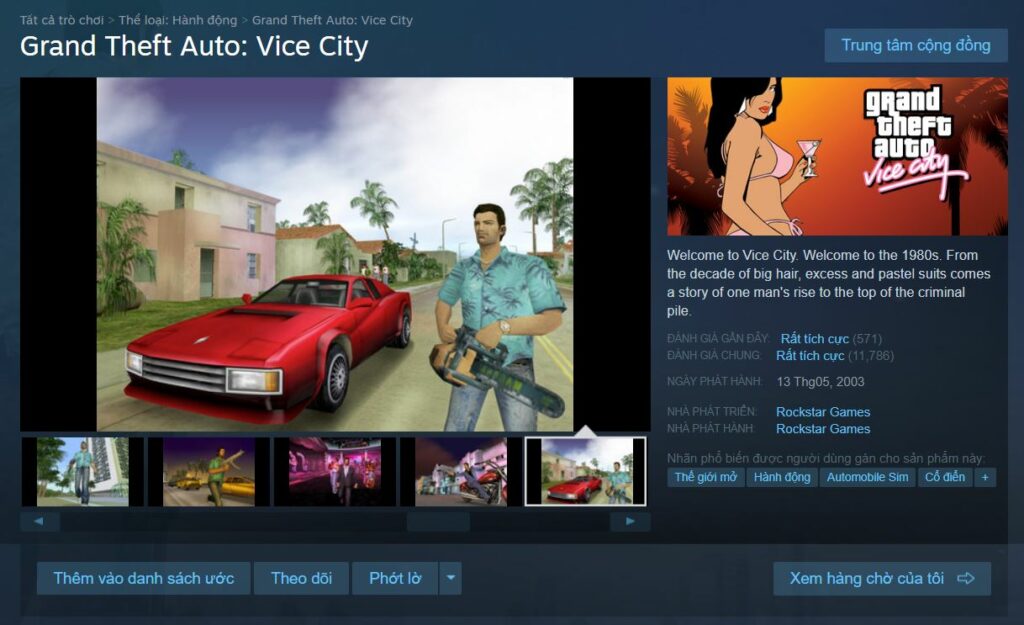
Instead, you can visit online game stores like Steam or GOG, type in the names of your favorite games, and purchase them. Although buying games will cost a bit of money, these games have surely been reprogrammed by developers to be compatible with newer versions of Windows so you can easily relive your childhood memories.
Source: How To Geek, Techquickie translated by Gearvn