


Typically, when we think of network connection speed, we immediately think of the bandwidth that ISPs (Internet Service Providers) can provide and the internet package we purchased from them. While these are two important factors in determining whether your home Internet speed is fast or slow, they are not the only factors.
Your computer connects to the Internet through a piece of hardware called a Network adapter (or more commonly known as a network card). And like all other hardware, the Network adapter has its own specifications, and these hardware specifications play an important role in determining your network speed.
Note: This method helps us determine the maximum network speed at the current time. This network speed is determined by two factors: the network card and the cable.
Guide to Check the Connection Speed of the Network Adapter
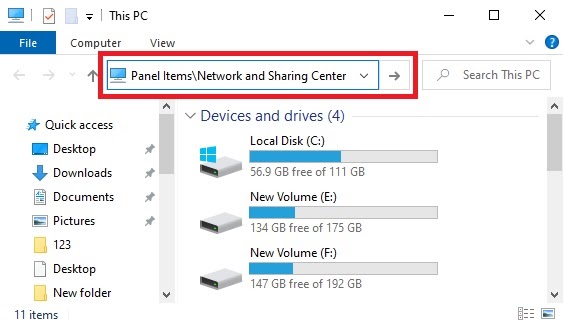
Step 1: First, open File Explorer. Then copy and paste the following line into the address bar and hit Enter.
Control PanelAll Control Panel ItemsNetwork and Sharing Center
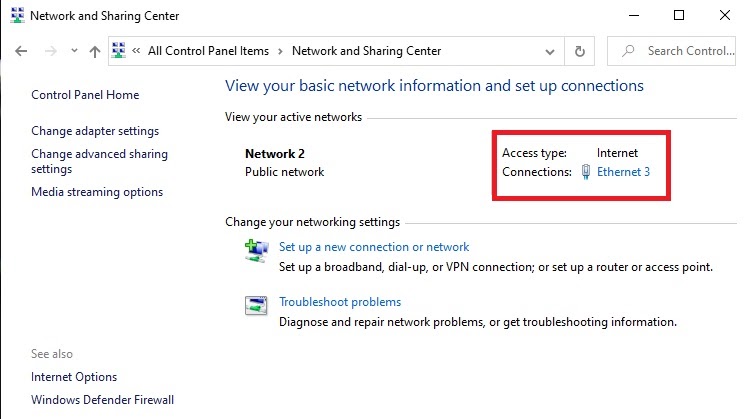
Step 2: Here, you can see the Wifi or Ethernet connection that your computer is using. Click on it.
Step 3: A new window will pop up, where you can see the maximum transmission speed supported by the Network adapter in the line labeled Speed.
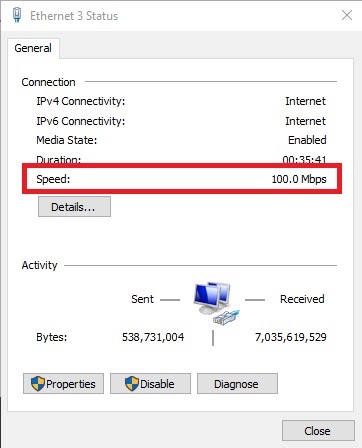
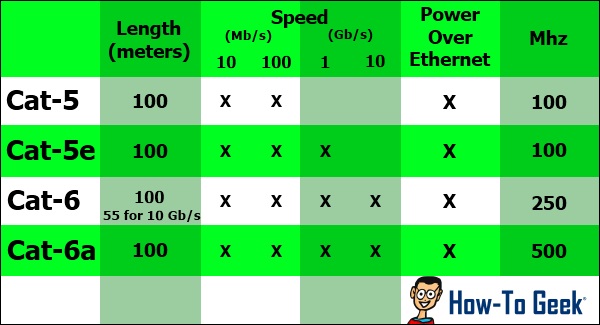
However, if your network card supports 1Gbps but the cable you are using is only cat-5, it will still only display 100Mbps. If you want to know the maximum speed supported by your network card, you can check the model of the card. Then visit the manufacturer’s website to find accurate information.
So I’ve guided you on how to check the internet connection of the Network adapter on Windows 10. Good luck!
Image source: HowToGeek edited by Gearvn