

TheNetTea
  • Trending Now
  • Creator Hub
    • IG Models & Influencers
    • Streamer Central
    • TikTok Stars
  • Net Vibe
    • Must-Watch
    • Screen Life
    • Viral Style
    • Lists & Quizzes
  • The Tea Room
    • Scandals & Exposés
    • Relationship Tea
    • Clapbacks & Feuds
No Result
View All Result
  • Trending Now
  • Creator Hub
    • IG Models & Influencers
    • Streamer Central
    • TikTok Stars
  • Net Vibe
    • Must-Watch
    • Screen Life
    • Viral Style
    • Lists & Quizzes
  • The Tea Room
    • Scandals & Exposés
    • Relationship Tea
    • Clapbacks & Feuds
No Result
View All Result
TheNetTea
No Result
View All Result
Home Net Vibe Must-Watch

Cannot delete because the file is in use by another program, here’s how to handle it

Have you ever encountered a situation where you click to delete a file that is no longer in use, only to see the message 'The action can’t be completed because the file is open in another program'?

June 21, 2020
in Must-Watch
0
0
SHARES
1
VIEWS
Share on FacebookShare on Twitter

This error message appears because the file you want to delete is open in another application or program. If you are facing a similar situation and still don’t know how to get rid of these undeletable files, try applying the 6 methods I will guide you through below.

Method 1: Close the Application
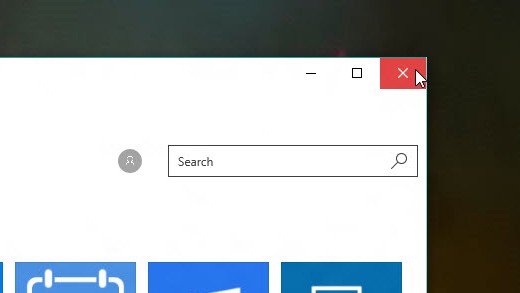
photo 1 15927027260121926976803

Before diving into more complex methods, let’s start with the simplest and most straightforward approach. If you can identify which application the undeletable file is open in, simply close that application. For instance, you can’t delete a Word file because you have it open, or you can’t delete an audio or image file because it’s being used in video editing software like Adobe Premiere or Camtasia. Once you close the application, try deleting the file again.

Method 2: Restart the Computer

photo 1 15927027305122126925821

Although restarting the computer may not be the most convenient method, it is easy and does not require any experience with Task Manager or third-party applications. Restarting the computer also clears the RAM and resolves annoying errors you might be facing. Therefore, try this method if you don’t want to delve too deeply into solving these issues.

Method 3: End the Application via Task Manager

The success of the restart method in Method 2 is due to your system shutting down all ongoing tasks or processes. However, this also means that all other important applications you are using will close as well. If you don’t want to restart your computer every time you encounter the message “cannot delete because the file is open in another program,” you can separately end that application within Task Manager.

Press Ctrl + Shift + ESC to open Task Manager, then find the application you used to open the file you want to delete, right-click on it, and select End task.
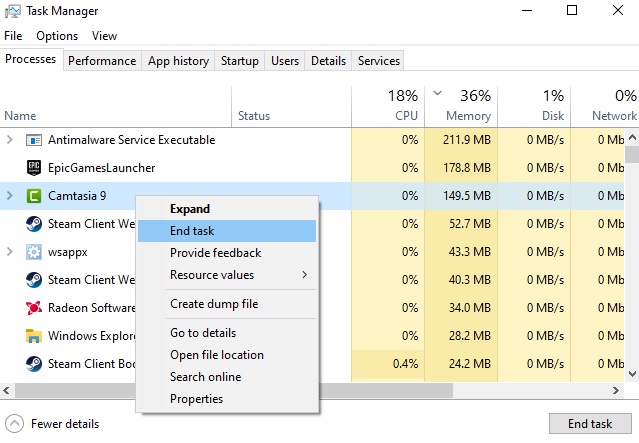
photo 2 1592702731417165924692

Method 4: Change File Explorer Task Settings

By default, File Explorer starts and runs all its windows in a single task, which is explorer.exe or Windows explorer.exe. However, it is possible that your settings have forced File Explorer to operate in separate tasks, causing conflicts between those tasks.

Press Windows + E to open File Explorer, then select View > Options > Change folder and search options.
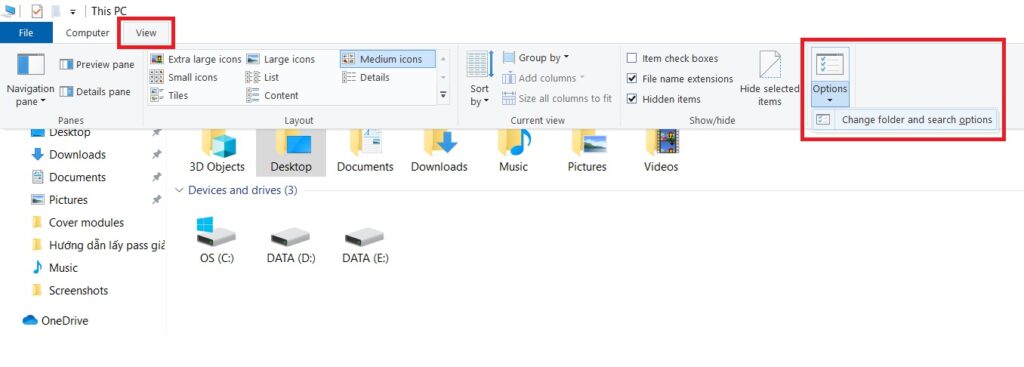
photo 3 1592702731034798854967

A new window will appear; select the View tab. Find and ensure that the Launch folder windows in a separate process option is not checked.
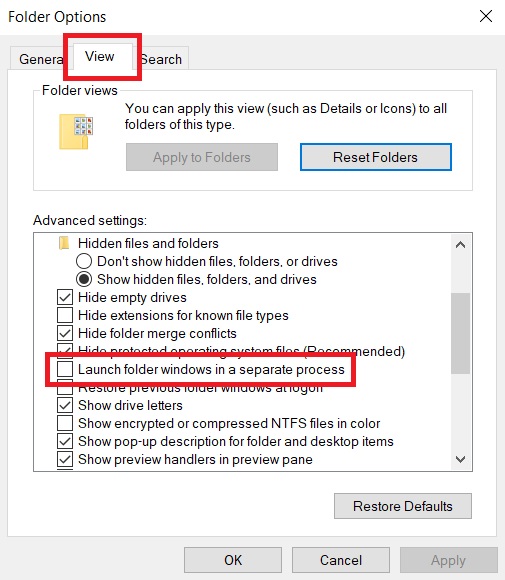
photo 4 1592702731140886164242

If you access the View tab and see that the Launch folder windows in a separate process option was unchecked from the beginning, you might try checking that box to see if the error is resolved.

Method 5: Disable the Preview Pane Feature in File Explorer

The Preview Pane feature in File Explorer can cause the “cannot delete because the file is open in another program” error.

Press Windows + E, then press the Alt + P key combination to disable the Preview Pane feature.
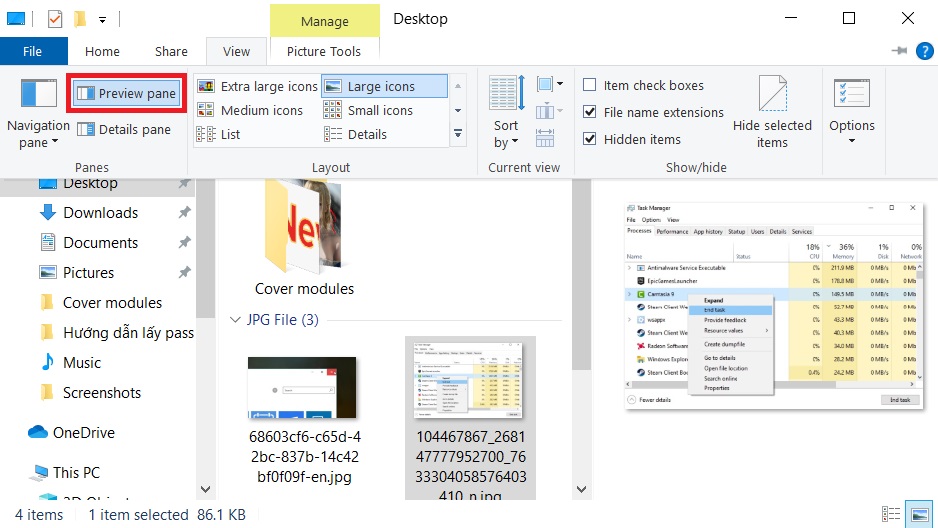
photo 5 15927027312921207672364

After disabling the Preview Pane, try deleting the file again to see if the error persists.

Method 6: Boot Windows in Safe Mode

photo 6 15927027316341724254875


If the above methods do not work, you can try one last resort: booting Windows in Safe Mode. If you are not aware, Safe Mode is a restricted mode of Windows. Specifically, when you run Windows 10 in Safe Mode, everything that may cause software errors is disabled. In other words, any applications that are not default Windows applications cannot run.

First, press Windows + I, select Update & Security > Recovery. Under Advanced startup, select Restart now. Then, choose Troubleshoot > Advanced Options > Startup Settings > Restart. When the computer restarts, you will see the Startup Settings screen, from which you can select Safe Mode. Once you enter Safe Mode, try deleting the file once more.

Wishing you success!

Source makeuseof


Tags: computergaming newsguidesonline communitytips

Related Posts

Must-Watch

Chim Sẻ Đi Nắng and His Daughter Shine in Reality TV, Causing a Sensation Right After Airing

Must-Watch

Exclusive: The New Beauty of the TDT League Revealed in an Unbelievable Way, Fans Eagerly Request to Join the ‘Fan Club’

Must-Watch

What’s in the Hit Movie About a Reformed Prostitute That’s Taking the Internet by Storm?

Next Post

Live Stream Emotions Watching Adult Films: Beautiful Streamer Faces Backlash, Nearly Loses Channel

Too Much Beaten, Arena of Valor Player Pouts During Match: "If League of Legends: Wild Rift Comes Out, I’ll Uninstall This Game"

Announcement of Piano Class Enrollment, Hot Girl Causes a Rush of Registrations, Volunteering to Study 8 Hours a Day

Leave a Reply Cancel reply

Your email address will not be published. Required fields are marked *

Categories

  • Clapbacks & Feuds
  • Creator Hub
  • IG Models & Influencers
  • Lists & Quizzes
  • Must-Watch
  • Net Vibe
  • Relationship Tea
  • Scandals & Exposés
  • Screen Life
  • Streamer Central
  • The Tea Room
  • TikTok Stars
  • Trending Now
  • Uncategorized
  • Viral Style

Topics

beautiful girls gamers gaming news hot girl internet community Netizens online community social media Streamer YouTuber

Recent News

  • Hospitalized for Exhaustion, the Next Day the Famous Coser Still Attends an Event to Meet Deadlines
  • Mai Linh Zuto’s Stunning Poses Leave Gamers Speechless
  • A Series of Beauties in Single’s Inferno Exposed: All Are Pageant-Level Beauties, Who’s ‘Ordinary’ Here?

Category

  • Clapbacks & Feuds
  • Creator Hub
  • IG Models & Influencers
  • Lists & Quizzes
  • Must-Watch
  • Net Vibe
  • Relationship Tea
  • Scandals & Exposés
  • Screen Life
  • Streamer Central
  • The Tea Room
  • TikTok Stars
  • Trending Now
  • Uncategorized
  • Viral Style

Tags

beautiful girls gamers gaming news hot girl internet community Netizens online community social media Streamer YouTuber
  • About
  • Advertise
  • Careers
  • Contact

© 2025 TheNetTea. Spilling the Internet’s Hottest Tea.

No Result
View All Result
  • Home
  • Scandals & Exposés
  • IG Models & Influencers
  • Trending Now
  • Creator Hub
  • TikTok Stars
  • Clapbacks & Feuds
  • Streamer Central
  • Relationship Tea
  • The Tea Room

© 2025 TheNetTea. Spilling the Internet’s Hottest Tea.