


This 10-second “delay” in the boot process is to give the operating system and Windows services time to load data into memory and perform necessary system tasks before these applications request resources. However, if you have certain applications that need to open immediately when Windows starts, you can make a small adjustment in the Registry.
Note 1: The method of adjusting in the Registry that I am about to introduce will reduce or disable the boot delay feature. This means it will apply to all applications that start with Windows. You will not be able to set a specific application to skip the boot delay.
Note 2: Skipping the boot delay will work best on SSDs; with HDDs, you may not notice any difference.
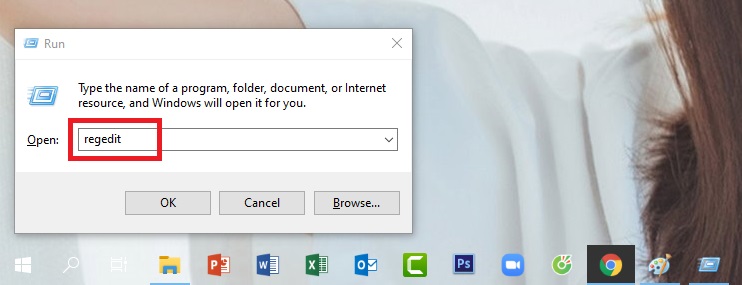
Step 1: First, press the key combination Windows + R and type regedit then hit Enter.
Step 2: When the Registry window appears, click in the following order (or copy and paste it into the search bar and hit Enter):
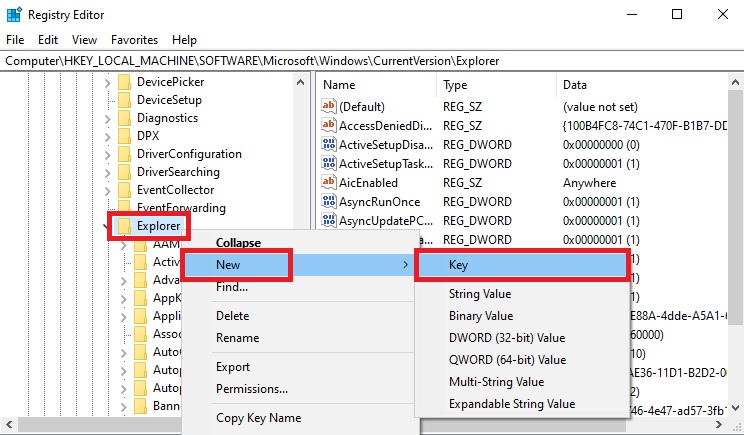
HKEY_LOCAL_MACHINESOFTWAREMicrosoftWindowsCurrentVersionExplorer
Step 3: Right-click on the Explorer entry, select New, then select Key.
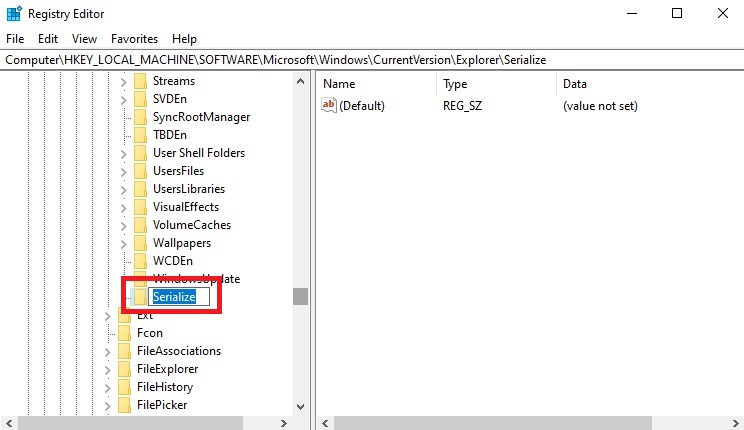
Step 4: Name the new Key you created Serialize.
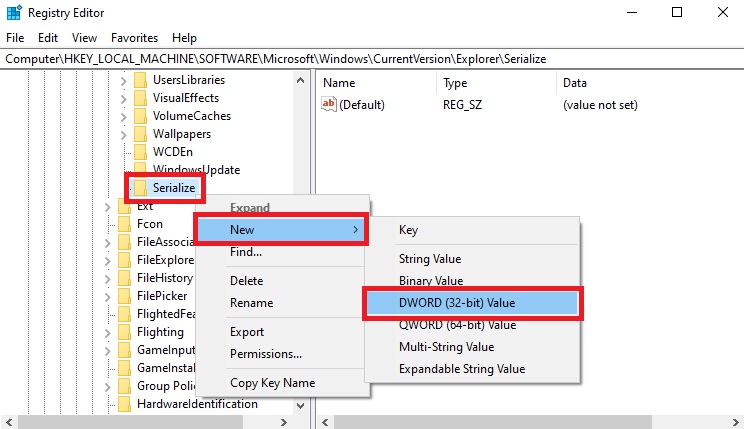
Step 5: Right-click on the Serialize entry, select New, then choose DWORD (32-bit) Value.
Step 6: Name the newly created entry StartupDelayInMSec.
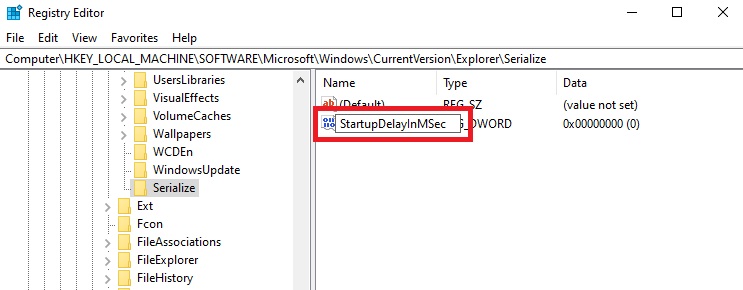
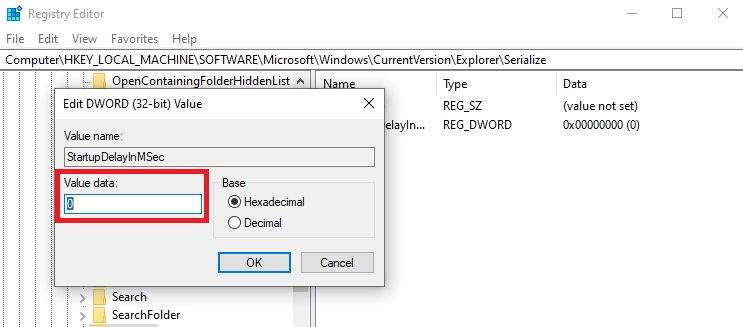
Step 7: Then, open the StartupDelayInMSec entry and ensure the Value data is set to 0. After that, exit Registry and restart your computer to save the settings.
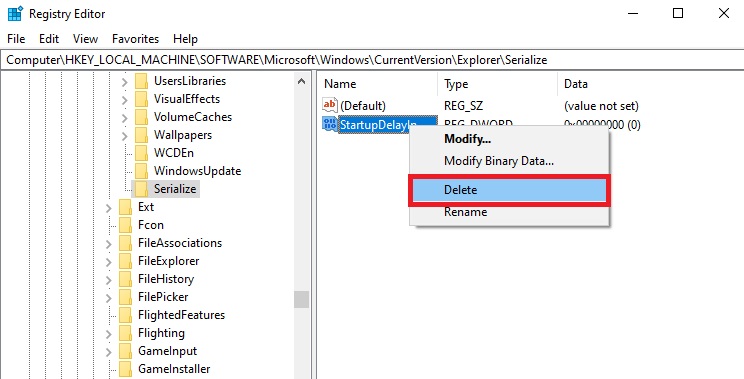
If you want to re-enable this feature, you can simply right-click on the StartupDelayInMSec entry and select Delete.
So that’s how I guided you to bypass the 10-second delay rule, helping applications to boot faster. Good luck!
According to Gearvn