

TheNetTea
  • Trending Now
  • Creator Hub
    • IG Models & Influencers
    • Streamer Central
    • TikTok Stars
  • Net Vibe
    • Must-Watch
    • Screen Life
    • Viral Style
    • Lists & Quizzes
  • The Tea Room
    • Scandals & Exposés
    • Relationship Tea
    • Clapbacks & Feuds
No Result
View All Result
  • Trending Now
  • Creator Hub
    • IG Models & Influencers
    • Streamer Central
    • TikTok Stars
  • Net Vibe
    • Must-Watch
    • Screen Life
    • Viral Style
    • Lists & Quizzes
  • The Tea Room
    • Scandals & Exposés
    • Relationship Tea
    • Clapbacks & Feuds
No Result
View All Result
TheNetTea
No Result
View All Result
Home Creator Hub

Guide to Creating a Large and Clear Virtual Crosshair for Any Shooter Game

This makes gaming much easier...

July 4, 2020
in Creator Hub
0
0
SHARES
3
VIEWS
Share on FacebookShare on Twitter

A crosshair, also known as a aiming reticle, is an essential “tool” for FPS players. The crosshair helps gamers aim more easily and also reduces instances of dizziness and nausea when playing first-person shooter games, as players can focus primarily on one point on the screen.

Most gaming monitors today come equipped with a crosshair feature that you can activate anytime if the game does not have this built-in feature. However, for Crossover, a free application that allows you to enable a crosshair in any game without needing a gaming monitor. Moreover, you can customize the crosshair to suit your needs, something not every game allows. This is one of the reasons for introducing this application.

Step 1: First, download the Crossover here. Then select Download CrossOver for Windows to download it.
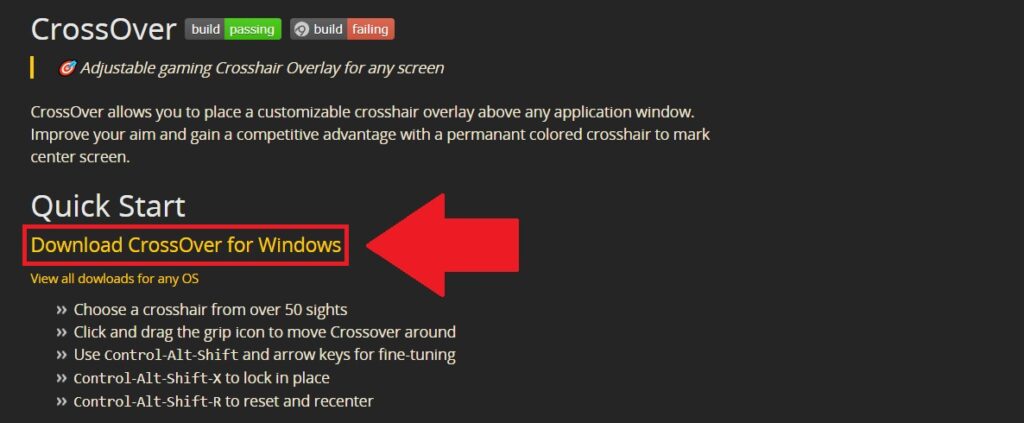
photo 1 15938434466661041407328

Step 2: After downloading, open the file CrossOver.exe to proceed with the installation.
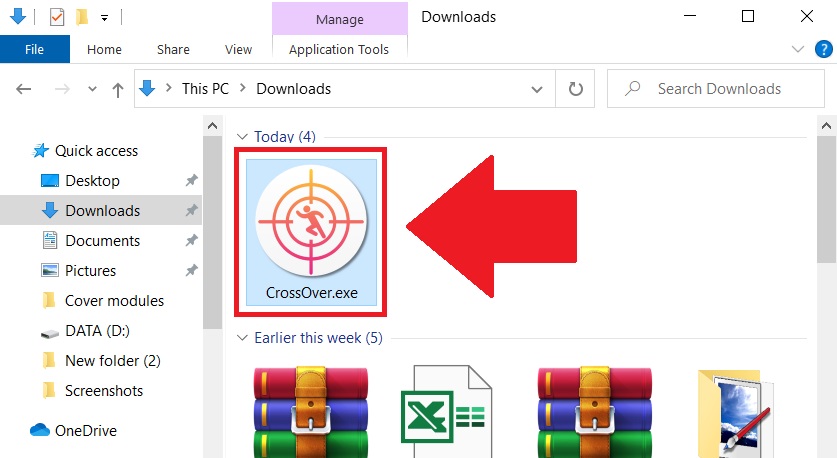
photo 1 1593843449046261100923

Step 3: If you see a Windows Defender warning, select the More info option and then choose Run anyway.
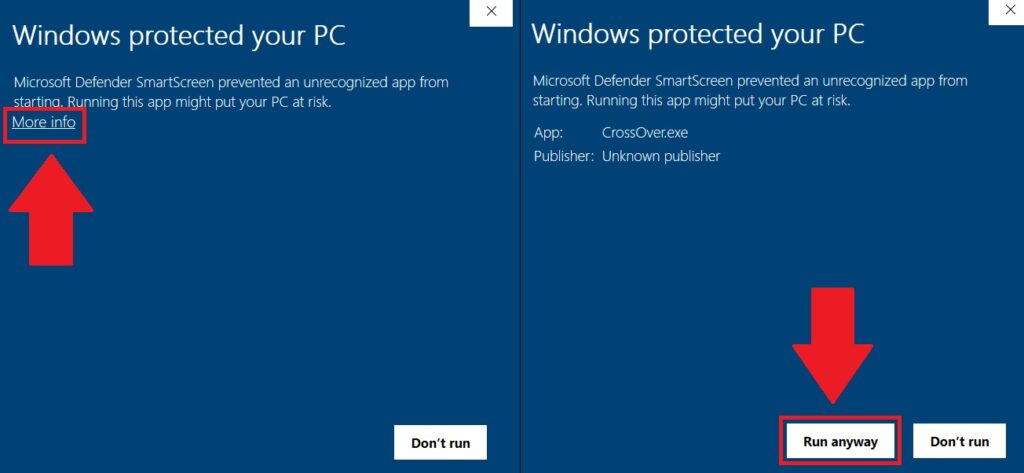
photo 2 15938434505411012789817

Step 4: After the installation is complete, the application’s options window will appear. Here, you can select any type of crosshair and color that you like by clicking on Choose Crosshair.
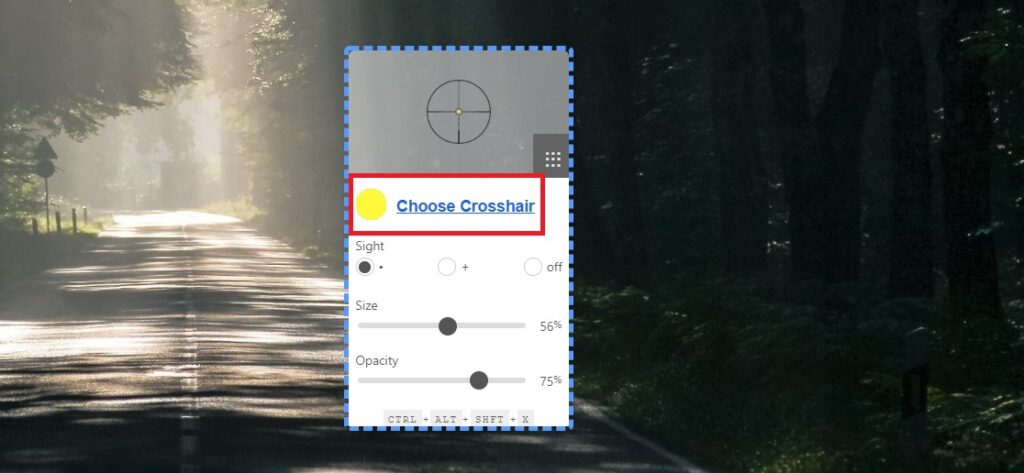
photo 3 15938434515321606141198

Step 5: In the Sight section, you can choose to have a dot, plus sign, or nothing in the center, depending on your preference.
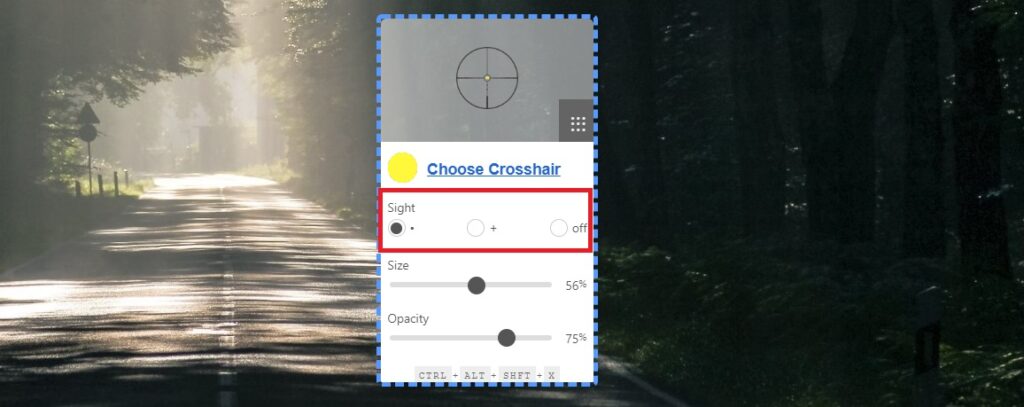
photo 4 15938434510581857660254

Step 6: Finally, you can select the size of the crosshair in the Size section by dragging the slider left or right to increase or decrease the size. In the Opacity section, you can adjust the intensity of the crosshair to avoid it blending into the game scene.
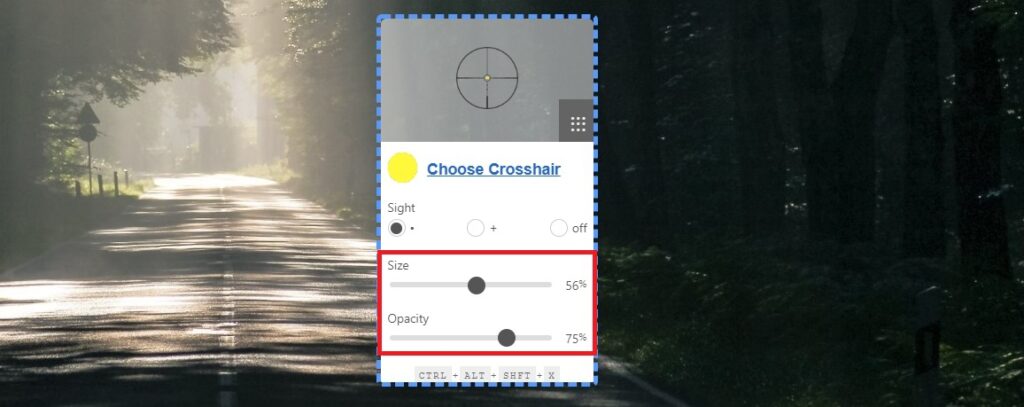
photo 5 15938434500531463459489

After making all adjustments, click and hold on the customization window and move the crosshair to any position on the screen that you want. Then press the key combination Ctrl + Alt + Shift + X to lock the crosshair on the screen.
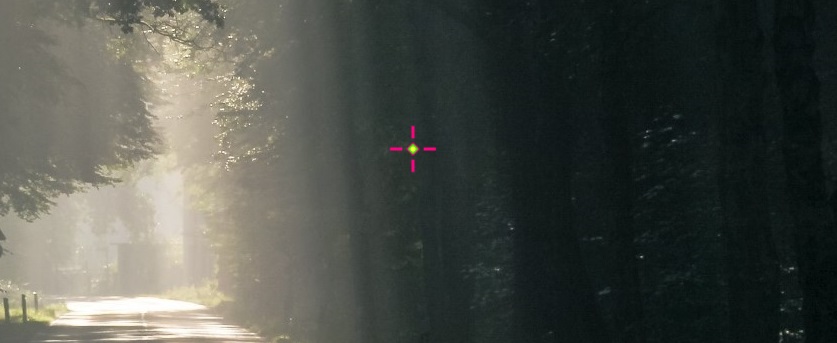
photo 6 15938434495421103832210

If you want to unlock the crosshair to move it, press the key combination Ctrl + Alt + Shift + X again.

To close the CrossOver application, right-click on the customization window and select Close.
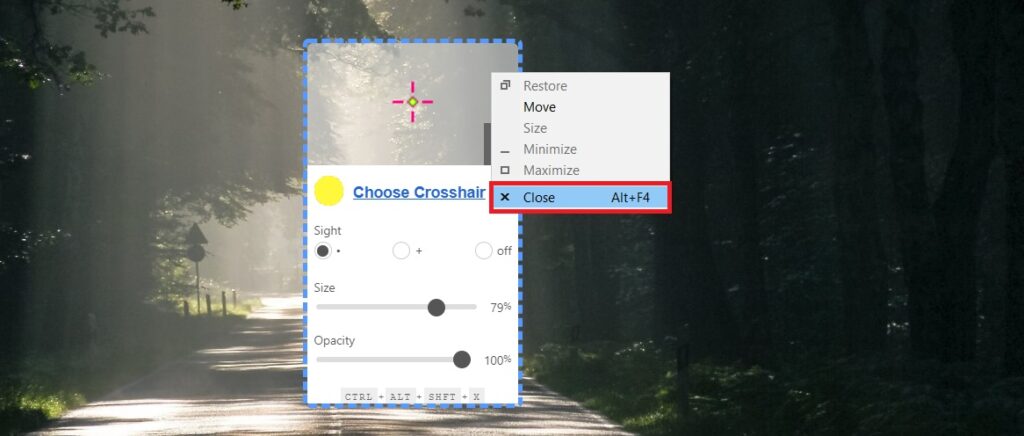
photo 7 15938434490891267719595

So that’s how I guided you on how to add and adjust the crosshair for all games. Good luck!

According to Gearvn


Tags: crosshair adjustmentfps gamegaming newsguideonline community

Related Posts

Streamer Central

Mai Linh Zuto’s Stunning Poses Leave Gamers Speechless

Streamer Central

Cosplaying Once for Eternity, the Sultry Female Streamer Pins Her Photo for Two Years, Climbing to the Top of Search Trends

Streamer Central

Sexy streamer panics as major incident occurs, burning over “60 million” live on air

Next Post

Nonchalant Full Chest While Going Braless for Massage, Hot Girl Causes Online Frenzy, Follower Count Soars

Scooter Crash Staged for Fame: Hot Girl Faces Backlash from Netizens

Users Furious with Microsoft for Forcing Edge Installation via Windows 10 Automatic Updates

Leave a Reply Cancel reply

Your email address will not be published. Required fields are marked *

Categories

  • Clapbacks & Feuds
  • Creator Hub
  • IG Models & Influencers
  • Lists & Quizzes
  • Must-Watch
  • Net Vibe
  • Relationship Tea
  • Scandals & Exposés
  • Screen Life
  • Streamer Central
  • The Tea Room
  • TikTok Stars
  • Trending Now
  • Uncategorized
  • Viral Style

Topics

beautiful girls gamers gaming news hot girl internet community Netizens online community social media Streamer YouTuber

Recent News

  • Hospitalized for Exhaustion, the Next Day the Famous Coser Still Attends an Event to Meet Deadlines
  • Mai Linh Zuto’s Stunning Poses Leave Gamers Speechless
  • A Series of Beauties in Single’s Inferno Exposed: All Are Pageant-Level Beauties, Who’s ‘Ordinary’ Here?

Category

  • Clapbacks & Feuds
  • Creator Hub
  • IG Models & Influencers
  • Lists & Quizzes
  • Must-Watch
  • Net Vibe
  • Relationship Tea
  • Scandals & Exposés
  • Screen Life
  • Streamer Central
  • The Tea Room
  • TikTok Stars
  • Trending Now
  • Uncategorized
  • Viral Style

Tags

beautiful girls gamers gaming news hot girl internet community Netizens online community social media Streamer YouTuber
  • About
  • Advertise
  • Careers
  • Contact

© 2025 TheNetTea. Spilling the Internet’s Hottest Tea.

No Result
View All Result
  • Home
  • Scandals & Exposés
  • IG Models & Influencers
  • Trending Now
  • Creator Hub
  • TikTok Stars
  • Clapbacks & Feuds
  • Streamer Central
  • Relationship Tea
  • The Tea Room

© 2025 TheNetTea. Spilling the Internet’s Hottest Tea.