


In fact, there are many software and applications out there that can do this. But if you are using an Intel CPU, why not use the official tool from Intel, right?
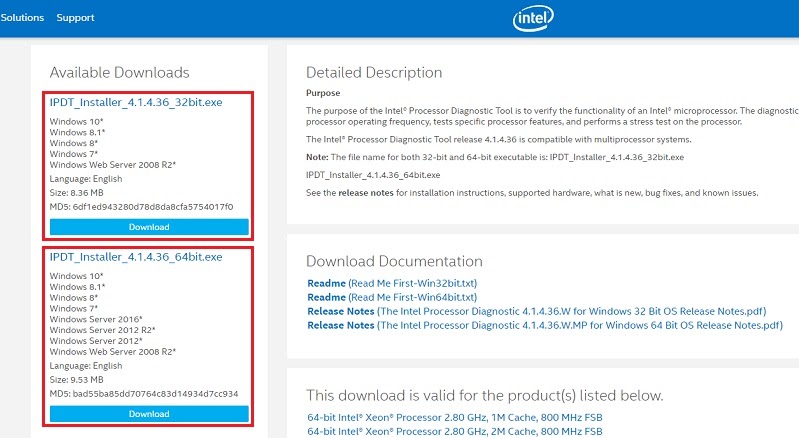
Step 1: First, click on the following link to access the Intel website and download the tool called Intel® Processor Diagnostic Tool.
https://downloadcenter.intel.com/download/19792/Intel-Processor-Diagnostic-Tool
Here you can download the 32-bit or 64-bit version depending on your operating system.
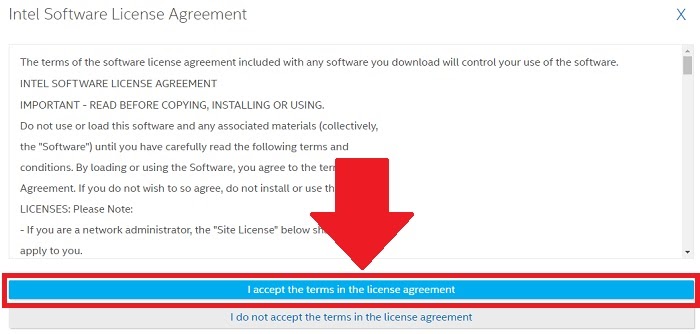
Step 2: Next, select the line I accept the terms in the license agreement.
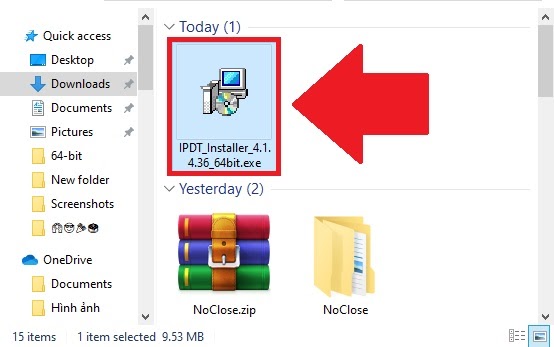
Step 3: After downloading, open the file IPDT_Installer_4.1.4.36_64bit.exe to proceed with the installation.
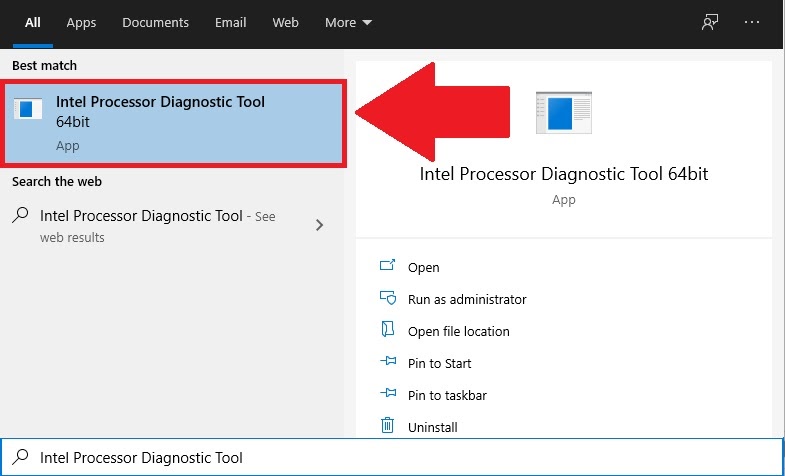
Step 4: After the installation is complete, click on Windows, then copy and paste Intel Processor Diagnostic Tool and hit Enter to open the CPU health check tool.
Step 5: Instantly, the tool window will appear on the screen and start running tests to measure your CPU’s health. The testing process can take from 10 to 30 minutes depending on your computer’s hardware.
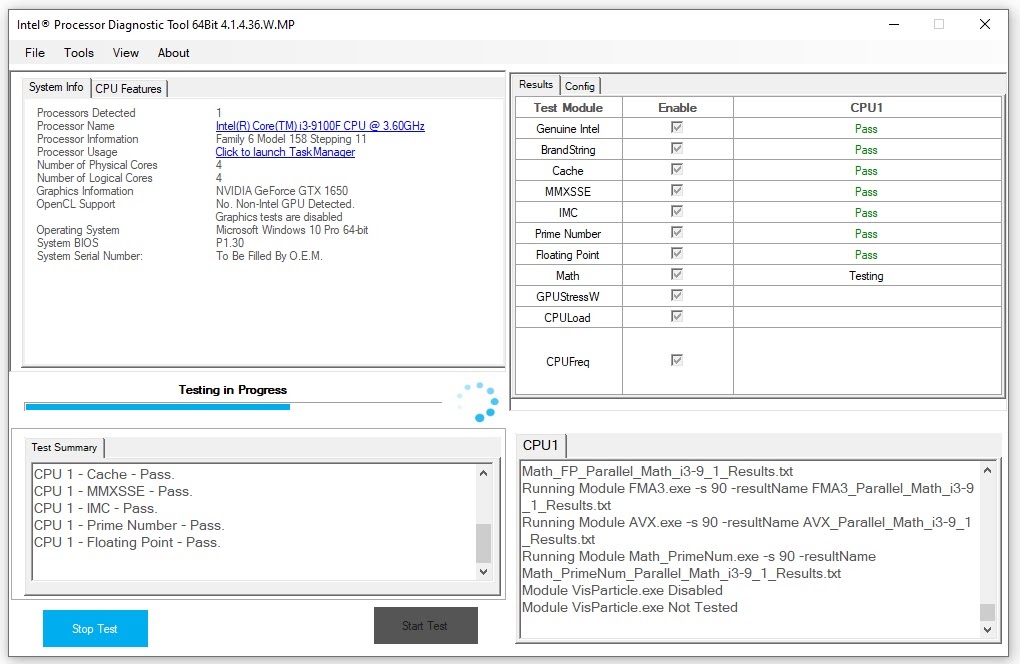
After the testing process is complete, you can see which tests the tool has run, and whether your CPU passed the tests or encountered errors.
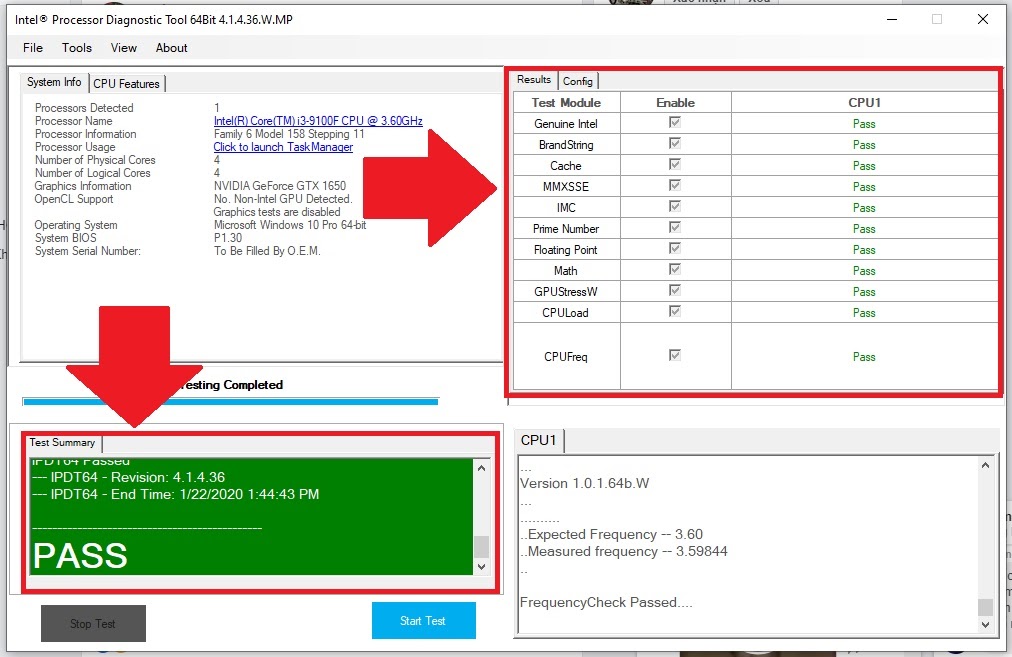
If any errors are found, it is best to take your computer to a reputable shop for repair.
So that’s how I’ve guided you on how to check the health of your CPU using Intel’s official tool. Good luck!
Source: Gearvn