


However, along with this are some risks that could cost you dearly if you damage your expensive components. Here are 10 tips for you when cleaning your PC based on my own experiences. I hope it will help you out.
If you use a brush, make sure it has very soft bristles
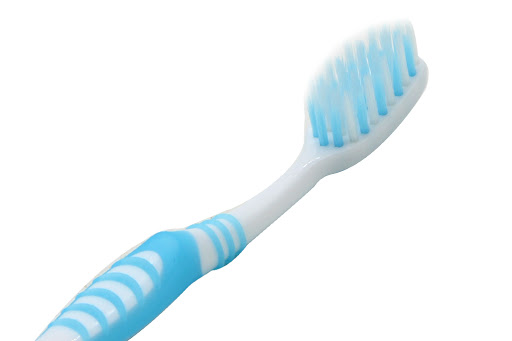
A dusting tool is always essential when cleaning any PC-related devices, from hardware to gaming gear. Typically, people use paintbrushes or art brushes to dust off the motherboard, graphics card circuits, heatsinks, and radiator… However, if you don’t have a brush, a toothbrush is not a bad alternative, but remember that if you use a toothbrush, it’s best to use one with ultra-soft bristles. Avoid using stiff-bristled brushes meant for scrubbing floors. If any small capacitors get scratched or dislodged, no manufacturer will cover your warranty.
Never touch the sealed screws if you don’t want to void your warranty
Some PC components have sealed screws, notably graphics cards. Typically, graphics card models will have 4 screws on the back to attach the contact surface of the cooler to the GPU chip; one of those screws will have a seal to prevent users from tampering with the hardware. Once you insert a screwdriver into these screws, don’t expect the manufacturer to honor your warranty.
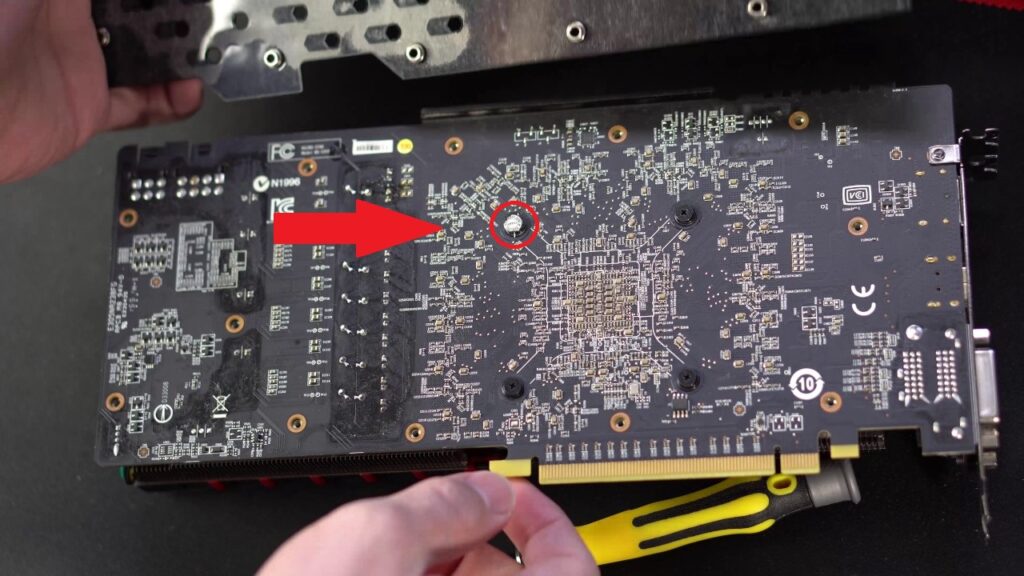
Some of you might wonder what to do if the card overheats? Well, the manufacturer will take care of that. Once they’ve applied thermal paste, they’ve accounted for you using the warranty without concern.
For Intel motherboards, do not touch the socket pins
If we were to highlight the biggest fears of Intel fans, then bent socket pins would definitely be among the first things mentioned. It’s best to avoid touching the socket pins as much as possible when cleaning the motherboard. When removing the cooler to replace thermal paste, just leave the CPU in place and proceed. When buying a motherboard, don’t throw away the socket cover; when changing the CPU, be sure to cover the socket with its lid. If you lose the socket cover, use a piece of paper to cover it. If you’re not a technician, it’s best not to touch it.
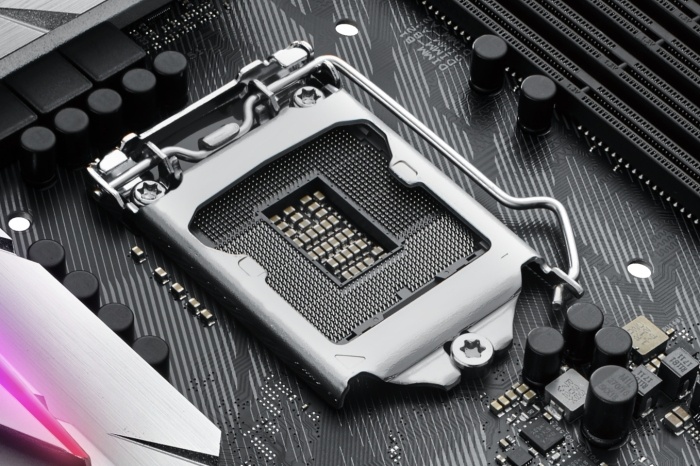
Some of you may ask, what if dust gets in? Well, don’t let dust in. Just follow what I wrote above, and if dust does get in and you see it’s not right, take it to a technician. These pins are extremely fragile, and if they bend, it’s no longer something an amateur can handle.
I remember when I just started working and bought the ROG Strix B360 Gaming H motherboard that I really liked. I was fiddling with the socket and accidentally dropped a screwdriver into it, bending more than ten pins. I spent an hour straightening those pins, and thankfully it still worked like magic, making me so happy I nearly cried.
Be careful when using compressed air cans
Compared to brushes, compressed air cans are much more convenient and can quickly handle dust, reaching places where brushes cannot. However, you should also be careful when using this, as sometimes the air pressure can be too high and damage delicate components. For example:
You aim the nozzle at the socket pins, press once, and you’re guaranteed to damage them. You hold the nozzle too close to the heatsink, bending the aluminum fins. Sometimes, it can even blow away small components. I haven’t seen this happen, but I’ve heard some industry colleagues mention it.
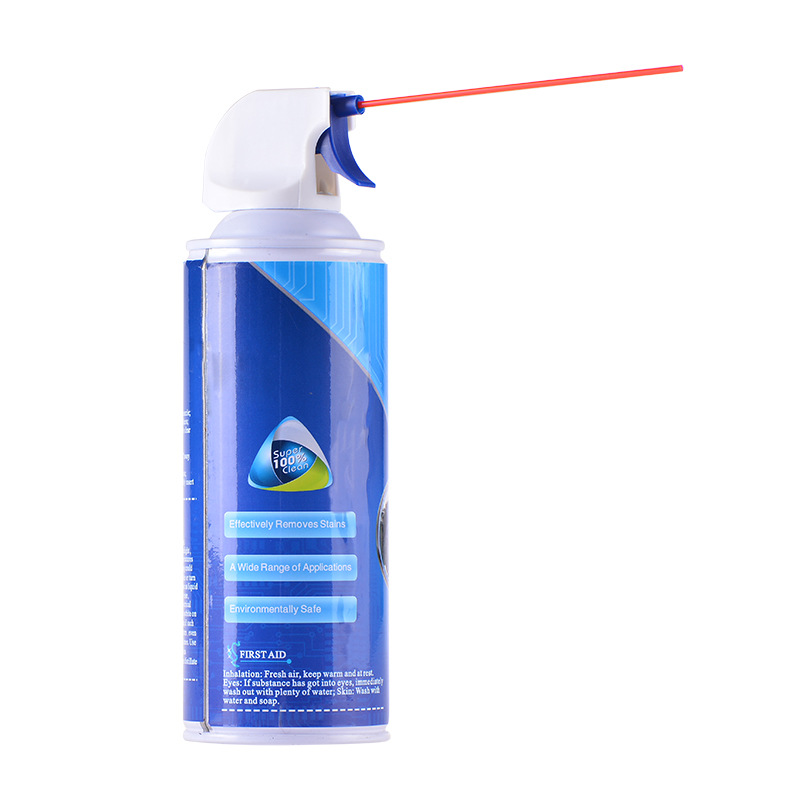
In summary, when using this, you need to know how to do it properly. Otherwise, stick to paintbrushes, art brushes, and soft brushes for safety.
When removing the AMD CPU cooler, it’s best to twist it first
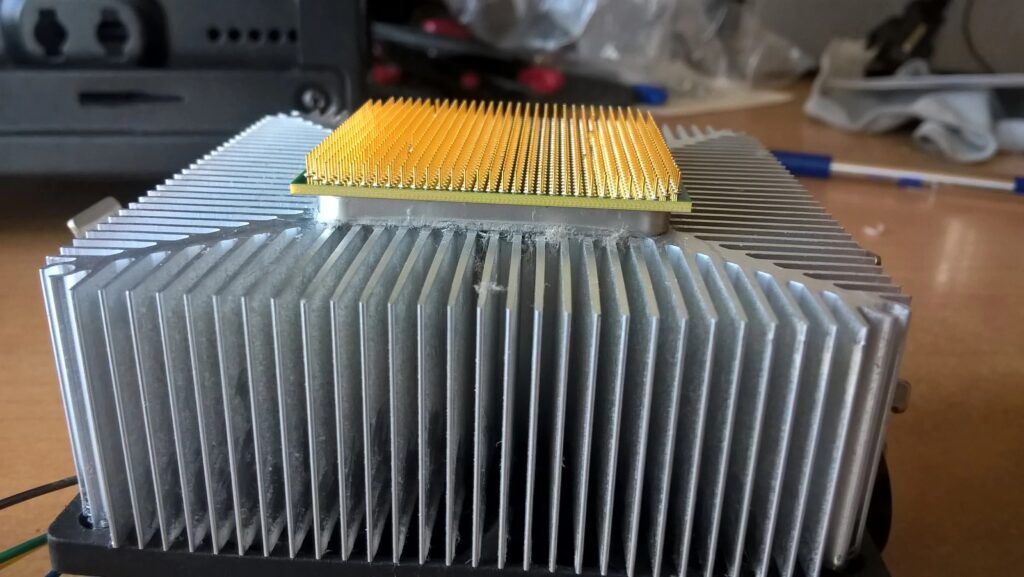
While Intel fans need to be cautious about socket pins, AMD fans must pay attention to the CPU being stuck to the cooler. The AMD CPU socket does not lock the CPU onto the motherboard like Intel does; it only tightens the CPU’s pins. There have been many cases where users removed the cooler and accidentally pulled the CPU out with it. Therefore, when using an AMD CPU, it’s best to twist it a little after loosening all the cooler’s pins to ensure it separates from the CPU when lifted.
Be careful when removing the glass panel of the case
Most gaming cases now come equipped with at least one glass panel to showcase the components inside. For those using budget cases with acrylic panels, there’s no need to worry; while they may be a bit “cheap,” they are difficult to break. For those with glass cases, you should be cautious every time you remove or install them. When tightening screws on the glass, just tighten them enough; don’t overdo it.
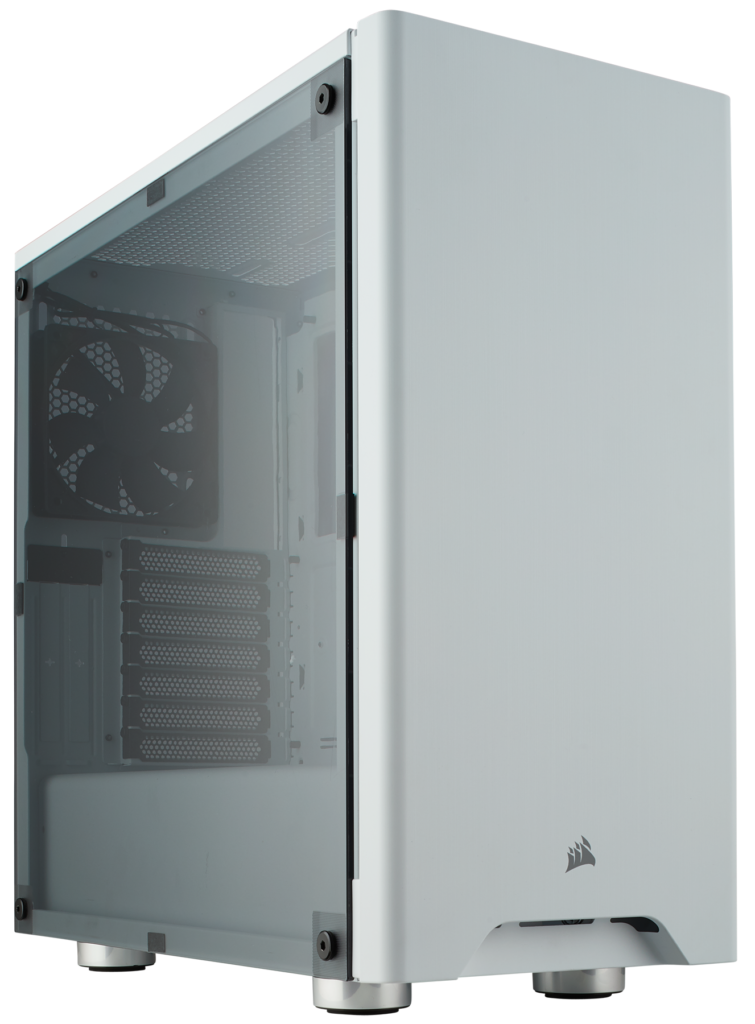
When tightening screws, you should follow this order:
First, loosely attach 2 diagonal screws to secure the glass panel. Attach all 4 screws. Start tightening the 2 diagonal screws; just enough to hold is sufficient, do not tighten them too hard. Then tighten the remaining 2 screws. Done.
Never tamper with the voltage switch on the power supply
Some power supplies, in addition to the main switch, will also have a voltage switch. This is because countries like Europe and Japan use 110V electricity, while Vietnam uses 220V. Typically, when cleaning machines, you should never have to touch this, but I still have to remind you because I know many of you might fiddle with it when you see it and end up paying a high price (which could be equivalent to a new power supply).
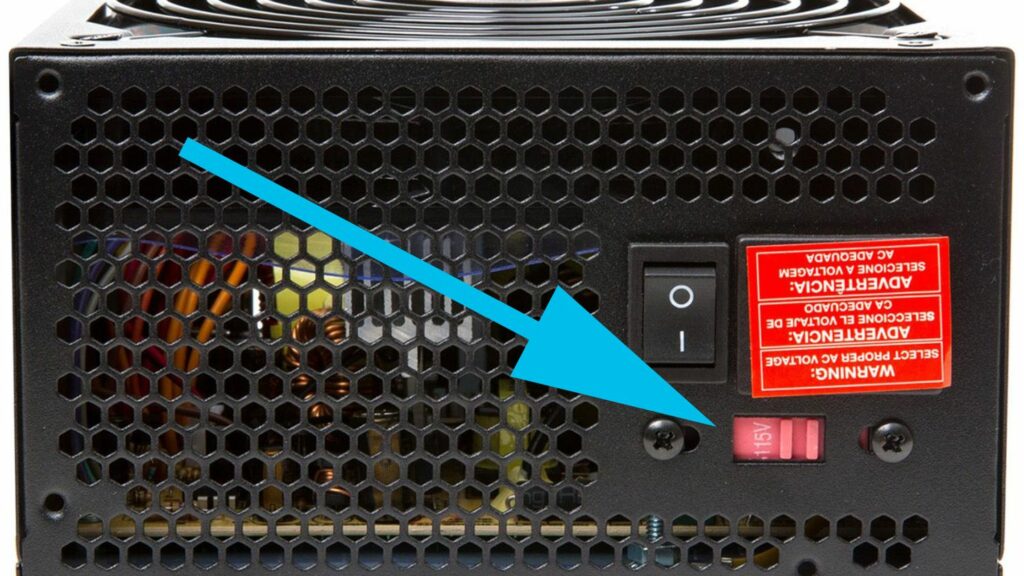
Let me share my experience so you won’t wonder. Back then, my PC was running, and I reached behind the case to plug in a USB and saw this switch. So I took a screwdriver tip and flicked it to the other position. As soon as I flicked it, there was a loud pop, and I ended up buying a new power supply. Luckily, it only fried the power supply, and all my components were still intact.
Be cautious of sweat
As we all know from school, saltwater conducts electricity. Disassembling the machine for cleaning is quite a time-consuming task. If the environment is cool, it’s fine, but if it’s hot, you’re likely to sweat. And our sweat is essentially saltwater. If sweat splashes onto the components, it could cause short circuits with unpredictable consequences.

I personally sweat easily, and my house doesn’t have air conditioning. So every time I clean my machine, I point a fan directly at myself to ensure that any sweat evaporates quickly instead of dripping. I also keep a towel draped around my neck to continuously wipe the sweat from my face, preventing it from pooling on my chin, nose, or eyebrows and dripping into the components. If you want to be more cautious than me, consider wearing rubber gloves to prevent sweaty hands as well.
Wipe with alcohol, not water

Alcohol evaporates much faster than water and has better cleaning properties. For areas without electronic components, such as the surfaces of RAM heatsinks, case fans, chipset coolers, the front and back plates of graphics cards, etc., you can wipe them with paper towels soaked in alcohol. Firstly, it dries very quickly, and if a few drops accidentally land on components, it’s not a problem. Secondly, it’s more effective against long-standing stains than water.
Turn off the power when removing components
Electronic components are sensitive to electricity, so when removing components, you should at least turn off the power. If you want to be extra cautious, unplug the monitor’s signal cable as well. Even small currents can create sparks, causing short circuits or similar issues that could damage your components. Therefore, it’s best to ensure that you turn off the power before removing anything from the PC. Although the chances of an incident occurring are quite rare, it’s better to be safe than sorry.
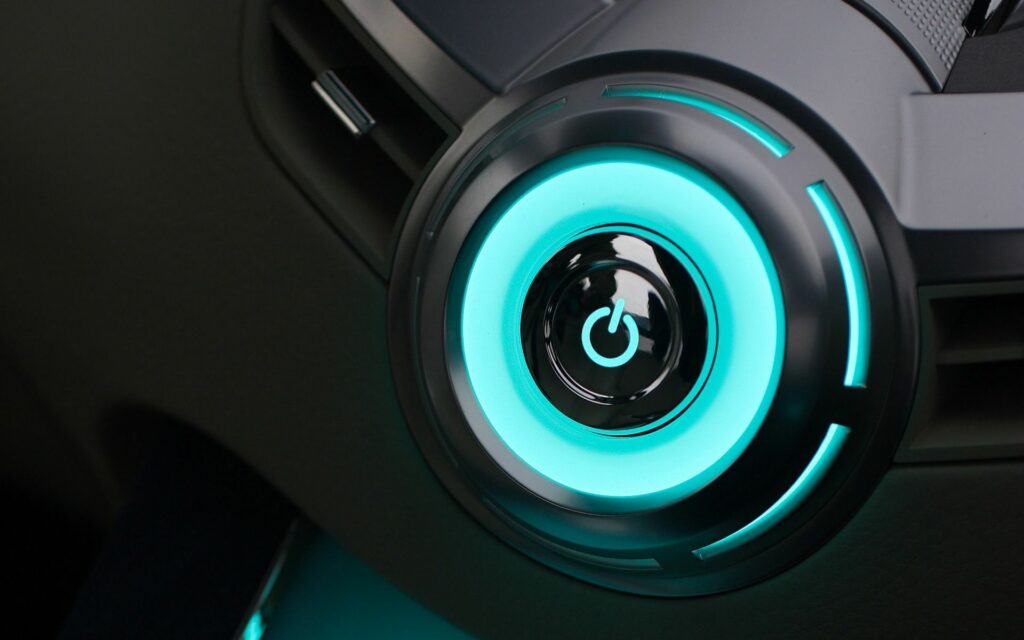
You should also know that computer components can store electricity, even when the power is turned off. So after turning off the power, press the power button again to discharge the electricity. In many cases, you will see the fan spin a few more times. At this point, the electricity is completely off. Personally, when I remove RAM and hard drives, I turn off the power. When I have to take everything apart, I unplug all cables and hold the power button for a few seconds before continuing.