


To successfully assemble a complete PC at the age of 20, I had already broken a lot of things beforehand. Here are the top 10 things you should remember when assembling a PC, based on my hard-earned experience. It might not help you eliminate all risks, but at least you won’t have to worry as much.
Attach the I/O Shield (FE)
Imagine you’ve finished assembling your entire PC, and when you plug in the cables to turn it on, you realize you forgot that damn FE shield. How would you feel? I’d definitely be cursing a lot! At that point, I’d have to remove a bunch of cables, cards, and the motherboard just to attach the FE shield again. If you’ve done your cable management too tightly, you might even have to redo that as well.
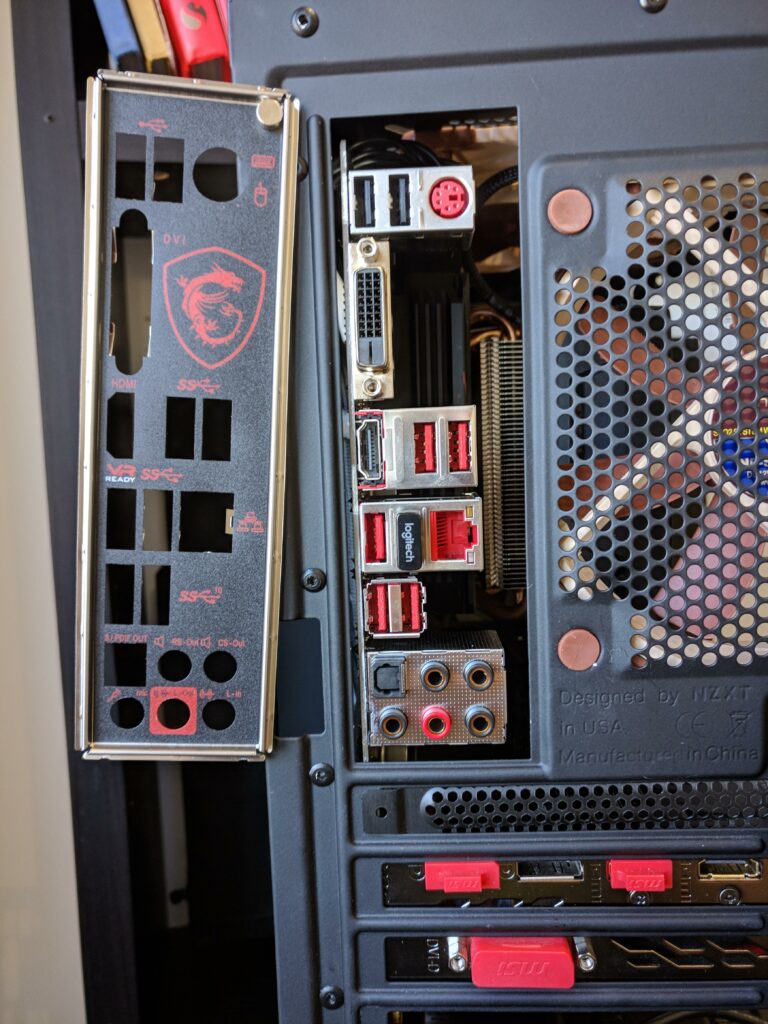
So, when you’re building your PC, make sure to install this piece first, then do whatever else you need to do. I’m quite obsessed with this now; whenever I buy a motherboard, I only choose ones that come with a fixed FE.
Always screw in a sequence for tempered glass
Most gaming cases nowadays come equipped with at least one glass panel to showcase the internal components. If you’re using a budget case with an acrylic panel, you don’t need to worry; it may be a bit “cheap-looking”, but at least it’s less likely to break. For those using a glass case, be careful every time you assemble or disassemble. When tightening screws on glass, just tighten them enough; don’t overdo it.
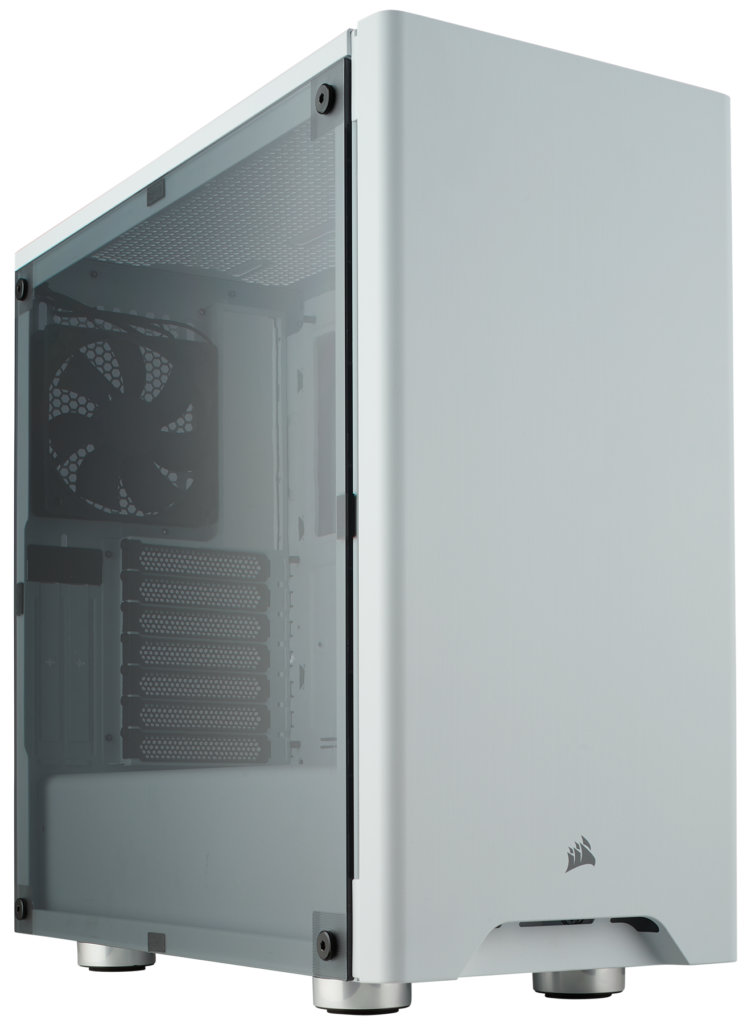
When screwing, follow this sequence:
First, loosely attach two screws diagonally to secure the glass panel. Attach all four screws. Start tightening the two diagonal screws, just enough to hold them, and stop; do not tighten them too much. Then tighten the remaining two screws. Done. Turn off the power when disassembling components
Electronic components are sensitive to electric current, so when disassembling components, you should at least turn off the power supply. If you’re more cautious, you can unplug the monitor signal cable as well. Even small amounts of electricity can create sparks, causing short circuits or similar issues that could damage your components. So, it’s best to ensure you turn off the power before removing anything from the PC. Although the chances of an issue occurring are quite rare, it’s better to be safe.

You should also know that computer components can retain charge even when the power supply is off. So, after turning off the power, press the power button again to drain any remaining electricity. In many cases, you’ll see the fan spin a few more times. Only then is the power completely off. Personally, whenever I remove RAM and hard drives, I turn off the power. When I have to disassemble everything, I unplug all cables and hold the power button for a few seconds before proceeding.
Always have a container for screws
I always do this: before I disassemble the case, I make sure to find a few bowls to hold the screws I remove from inside the case. Don’t underestimate it just because there are few screws; it’s still essential to be careful.

Once the PC is disassembled, it can get quite chaotic and hard to manage. Just a little oversight, and you’ll surely end up missing screws when reassembling. Losing screws on the motherboard can be replaced with generic screws, but losing screws for the tempered glass can be a hassle since they come with the case.
Rotate the AMD cooler before removing
While Intel fans need to be careful with the socket pins, AMD fans need to pay attention to the CPU sticking to the cooler. The socket for AMD CPUs does not lock the CPU to the motherboard like Intel; it just tightens the CPU pins. There are many cases where users accidentally pull the CPU out along with the cooler when removing it. It usually doesn’t break, but the feeling is not pleasant at all.

So, when using an AMD CPU, it’s best to slightly rotate it after removing the cooler; gently shake it left and right gradually to loosen the thermal paste. Only when you’re sure it can be easily separated should you lift it.
Keep the socket cover
Many users throw away the socket cover after installing the CPU. While it might seem useless if the CPU is already in place, that doesn’t mean you should discard it. Basically, you need to keep this cover to maintain the motherboard warranty.
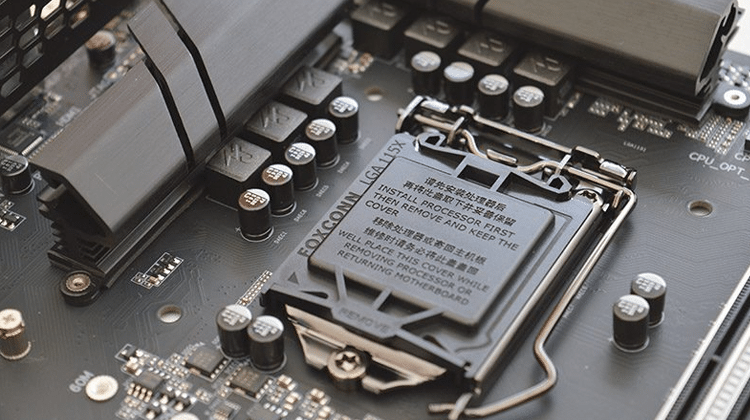
I personally have a habit of keeping all the packaging, papers, and accessories that come with the product when building a PC. I usually toss this cover into the motherboard or CPU box. Besides warranty purposes, this cover can be quite useful in many situations. For example, when you don’t have a CPU to install, you can use this cover to protect the socket pins. A used motherboard with the cover and all accessories often sells for a better price.
Listen for the “click” when installing RAM
RAM slots have a common standard: when you push the RAM stick into its correct position, a small “click” sound will be heard. Each RAM stick has two ends, and when both ends make a “click” sound, it means it’s properly seated.

If you don’t pay attention to this and install RAM loosely or misaligned, it can be very dangerous. The least consequence is that the PC won’t boot; at worst, the RAM pins could burn out, and if the RAM pins burn out, the RAM slot on the motherboard might also be damaged, resulting in losing both the RAM stick and one RAM slot. So remember to pay attention, my friends. But remember to push gently; pushing with all your might could break the motherboard.
When installing the cooler, remember to remove the shield
This may sound a bit rare and hard to believe, but it’s true, and it’s not that uncommon. Cooling units usually come with a shield on the thermal interface. If you don’t pay attention and install the cooler without removing it, it will act as an insulator between the CPU’s back and the cooler’s thermal interface, significantly hindering cooling performance.

When you buy a cooler, remember to remove this shield. After assembling everything and noticing the CPU temperature skyrocketing, you’ll have to disassemble it to check.
Keep the packaging and receipts
Many users are quite careless, not keeping things like packaging and purchase receipts. After buying and assembling, they just toss them around. Some brands or retailers have warranty policies that require receipts, packaging, or both for verification and warranty application. Once you lose these, it’s like losing the warranty altogether, and you’ll have to bear the cost of any future component failure. If the retailer or brand has poor service, you won’t have any evidence to complain about.
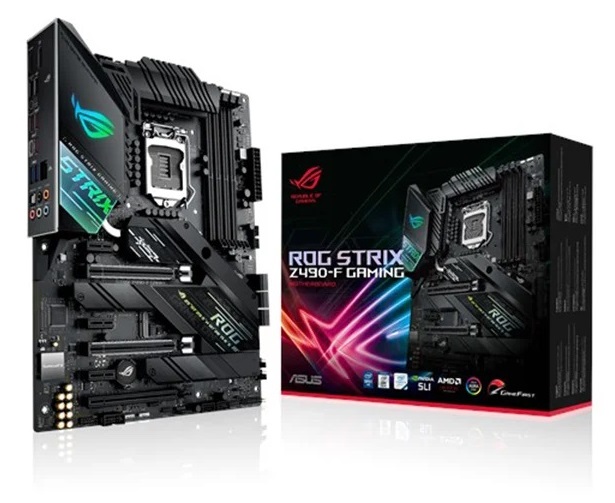
In general, if you’re not clear about the warranty terms, keep everything that comes with the product. If anything happens, it’ll be easier to discuss.
Don’t poke screws into warranty seals
Some PC components come with sealed screws, typically graphics cards. Usually, graphics card models have four screws on the back to attach the cooler to the GPU chip; one of those screws will have a seal to prevent users from tampering with the hardware. Once you poke screws into these, don’t expect the manufacturer to honor the warranty.

Some of you may wonder what to do if the card overheats? Then the company will handle it; just take it to the warranty center and let them deal with it. Once you apply thermal paste, they already accounted for you to use up the warranty without concern. The same goes for SSDs and HDDs; only tamper with the warranty-sealed screws if you meet two conditions: the warranty has expired, and you know what you are doing. If you’re a professional, you probably don’t need me to guide you on this.