


Does your PC have enough RAM?
You might be surprised to know that many budget or mid-range PCs currently on the market are only equipped with 4GB of RAM. However, these PCs will quickly become sluggish when you open too many tabs while browsing the web or launch RAM-hungry applications like Adobe Photoshop.
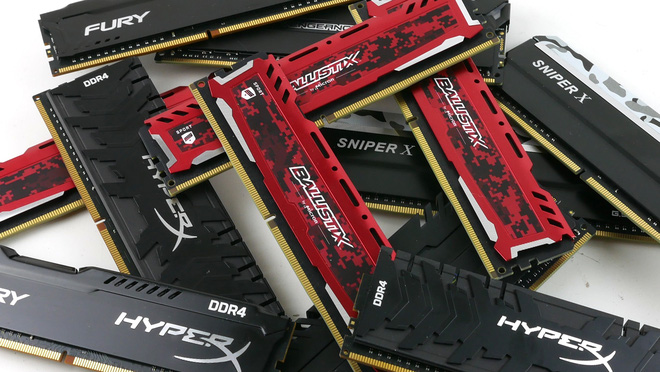
This is the main reason why users should equip their PCs with at least 8GB of RAM. Specifically, PCs used for tasks like web browsing, watching movies, running Microsoft Office, and playing one or two esports titles should have at least 8GB of RAM.
Meanwhile, gamers wanting to play the latest AAA blockbuster titles should equip their systems with at least 16GB of RAM. Beyond this threshold, whether to upgrade further depends on your actual needs. For example, a PC used for editing 4K video will need 32GB of RAM.
Is there any bottlenecking occurring?
If you suspect that a lack of RAM is causing your PC to experience bottlenecking, you can detect this by checking your system’s performance.
First, press Ctrl + Shift + Esc to open the Task Manager in Windows 10, then click on “More details” to open the advanced view. Click on the “Performance” tab, then click on “Memory.”
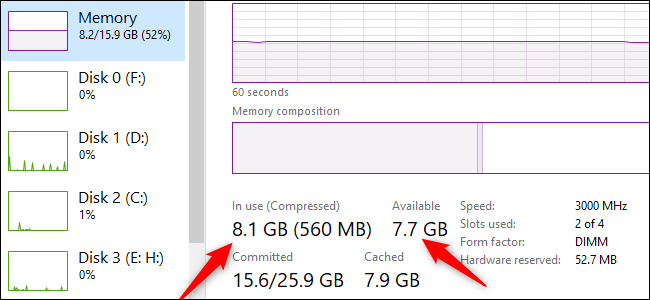
Next, start using your computer normally and monitor the metrics displayed in Task Manager, including the “In Use” and “Available” sections under the RAM usage graph. If you still have a lot of RAM free, then RAM may not be the issue. However, if the amount of RAM in use approaches 100% when your machine is slow, upgrading the RAM will help resolve the situation.
Is the XMP feature activated?
If you assembled your PC components yourself, there’s a good chance you haven’t (or forgot to) maximize the performance of the installed RAM sticks. In the BIOS settings of the motherboard, you can activate a feature called “eXtreme Memory Profile” (XMP). If your PC uses an AMD CPU, a similar feature will be called DOCP.
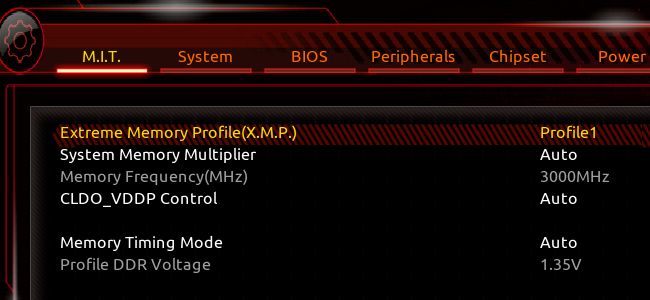
Essentially, XMP is an Intel technology that you can think of as a RAM overclocking tool. When you activate XMP in the BIOS without adjusting any other settings, this feature allows the RAM to run at the advertised speed (e.g., 3200MHz) instead of the slightly slower default speed (e.g., 2666MHz).
Is the RAM speed fast enough?
Upgrading RAM is not as simple as replacing a hard drive or graphics card. You need to choose the correct type of RAM (the current standard for modern motherboards is DDR4), and its speed must be supported by the motherboard.
Additionally, if you install one RAM stick and want to add another, both sticks must have the same bus speed. However, some people prefer to use a RAM Kit, which consists of two identical RAM sticks (instead of mixing RAM from different manufacturers) to ensure stable PC operation.
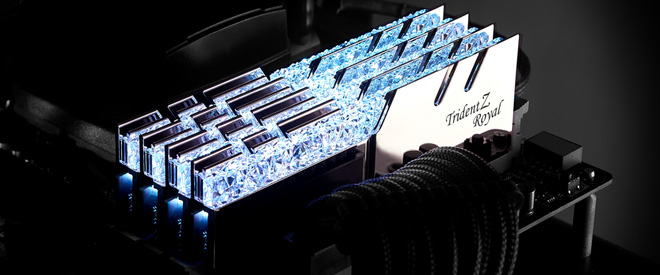
Finally, don’t forget to check the speed of your current RAM stick to know how effective the RAM upgrade will be. For instance, if your RAM stick has a bus speed of around 2400MHz, upgrading to a 3000MHz bus will significantly enhance your PC’s performance. However, if you’re already using a 3000MHz RAM stick, the performance gain from upgrading to 3200MHz or 3600MHz RAM will not be as pronounced.
Has an SSD been installed?
If RAM is not the cause of the bottlenecking, you should consider other options to speed up the system. For example, if you are still using an HDD, your top priority should be to buy an SSD immediately.
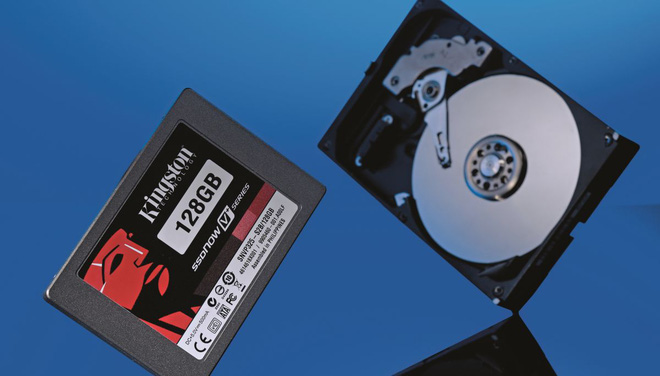
In fact, using even the cheapest SSD (instead of an HDD) will provide a much smoother experience compared to upgrading RAM. For instance, Windows boot time will be significantly reduced, while opening applications occurs much faster. Similarly, loading times in games installed on an SSD are much quicker compared to an HDD.
However, don’t discard your old HDD after upgrading. You can still use the HDD for data storage. Additionally, you can place the HDD in an external hard drive enclosure and use it as a portable drive.
Is the CPU and GPU strong enough?
If upgrading the RAM and SSD does not yield significant results, it’s time to consider buying a new PC or upgrading the CPU and graphics card.
To check how your CPU is performing, pay attention to CPU usage levels using system monitoring software like MSI Afterburner. During gaming, if the CPU is running at full capacity (100%) and the GPU is only operating at 70-80%, it’s likely that your CPU is the culprit of the bottlenecking. In other words, you need to upgrade your CPU to allow the graphics card to maximize its power.
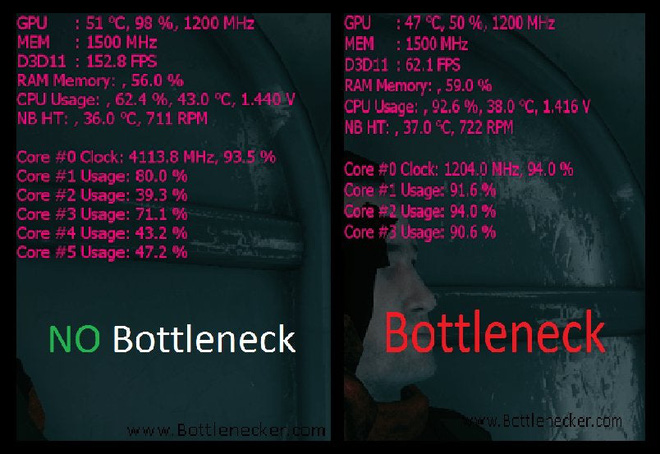
Conversely, if the CPU is strong enough but the FPS in games remains very low, you definitely need to upgrade the graphics card.
If your budget does not allow you to upgrade your computer, another solution for budget-conscious users is to try overclocking the components, which can provide a slight performance boost. Of course, overclocking also carries risks, including voiding warranties and reducing the lifespan of the CPU and GPU.
Source: HowToGeek