


Due to various reasons, such as shipping issues, many families have been unable to purchase webcams for online learning on laptops or PCs. In this article, parents can try various applications to utilize the camera of their iPhone and Android phones as a webcam, thereby ensuring that students’ learning is not interrupted.
How to Use iPhone or Android Smartphone as a Webcam for PC via Wireless Connection
With a wireless connection, you can use a cross-platform application called DroidCam from developer Dev47app to turn your phone’s camera into a webcam. The features in the free version of DroidCam are considered sufficient, providing a pretty decent experience. Therefore, you don’t necessarily need to upgrade to the paid version, DroidCamX (priced at $5).
Step 1: Download and install DroidCam from Google Play or the App Store. Users should also download the DroidCam Client application on their PC from the official DroidCam website at https://www.dev47apps.com/droidcam/windows/. After both are installed, make sure that your computer and phone are connected to the same Wi-Fi network.
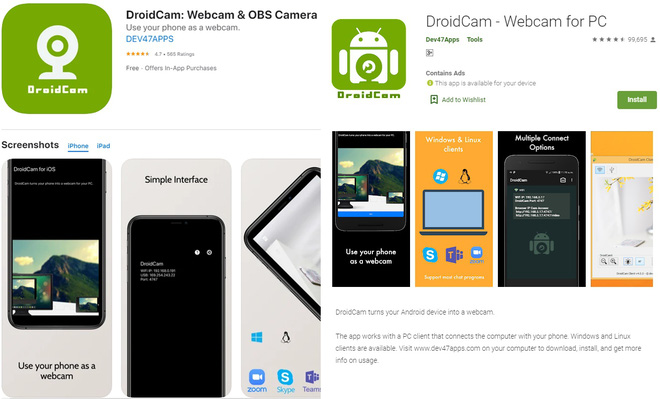
Step 2: Launch DroidCam on your phone while simultaneously launching the DroidCam Client on your computer by clicking the shortcut icon on the desktop.
Step 3: At this point, the DroidCam application on your smartphone will display the device’s IP address in the WIFI IP section (e.g., 192.168.0.200). Meanwhile, the DroidCam PC application will display a connect box. Enter the IP address of your smartphone (shown in the Wifi IP section of the phone application).
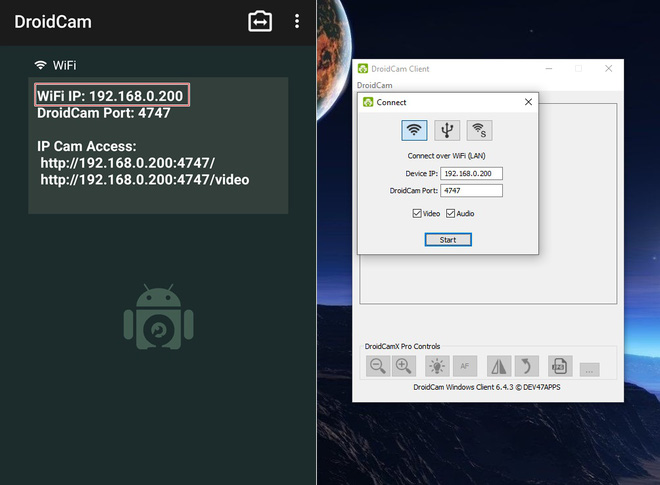
Enter the IP address (e.g., 192.168.0.200) displayed in the Wifi IP section on the DroidCam phone into the Device IP box on the PC version of DroidCam. Leave the DroidCam Port set to the default of 4747.
Step 4: After entering the IP, click Start to connect and sync the DroidCam application on the PC and smartphone.
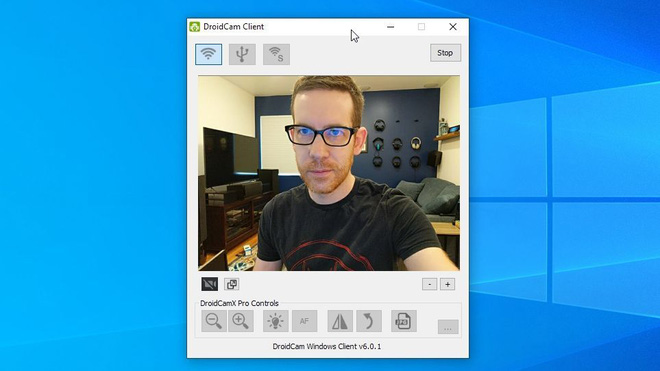
When the connection is successful, the image captured from the front/rear camera on the phone will be displayed on the preview screen of the application, indicating that the application is functioning normally.
How to Use iPhone or Android Smartphone as a Webcam for PC via USB Cable Connection
Connecting via USB cable offers more advantages regarding stability, transmission speed, and image quality compared to wireless connections, which may encounter issues if the Wi-Fi signal is unstable or not fast enough.
In this article, you can try out a recently launched application that has received good feedback: Camo. The free version of Camo (developed by Reincubate) offers a very good user experience and many more customizable features than other applications like DroidCam.
Note that this application only supports connections via a Lightning to USB cable (for iOS devices) or a Type C/Micro USB to USB cable (for Android devices) to connect to PC/Mac. However, the installation process for Camo is quite similar to that of DroidCam.
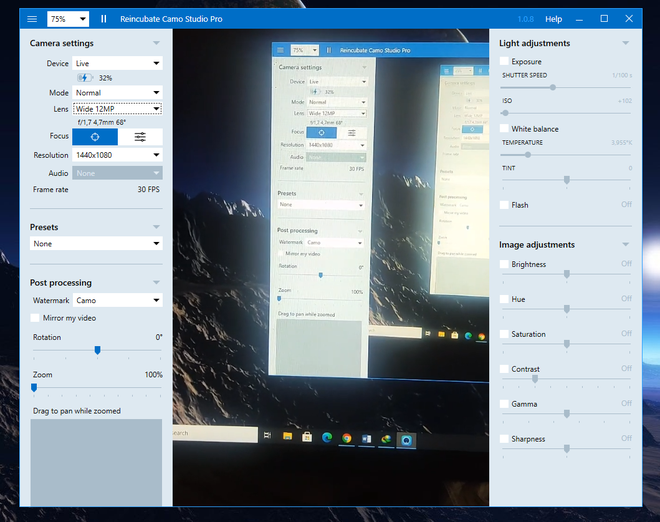
The Camo Studio application interface on PC, with many options for resolution, lighting adjustments, color, and contrast
Step 1: First, install the Camo application — webcam for Mac and PC by searching on Google Play/AppStore. Then, also install Camo Studio – the PC/MAC version of Camo via the following link https://reincubate.com/camo/downloads/.
Step 2: After installing the application, plug the charging cable into your smartphone and connect it to the PC/Mac.
Step 3: Launch the Camo Studio application on PC/Mac, then launch the Camo application on your smartphone. At this point, Camo Studio will automatically detect and connect to the camera on your smartphone to display it as a webcam, with users needing to do nothing further.
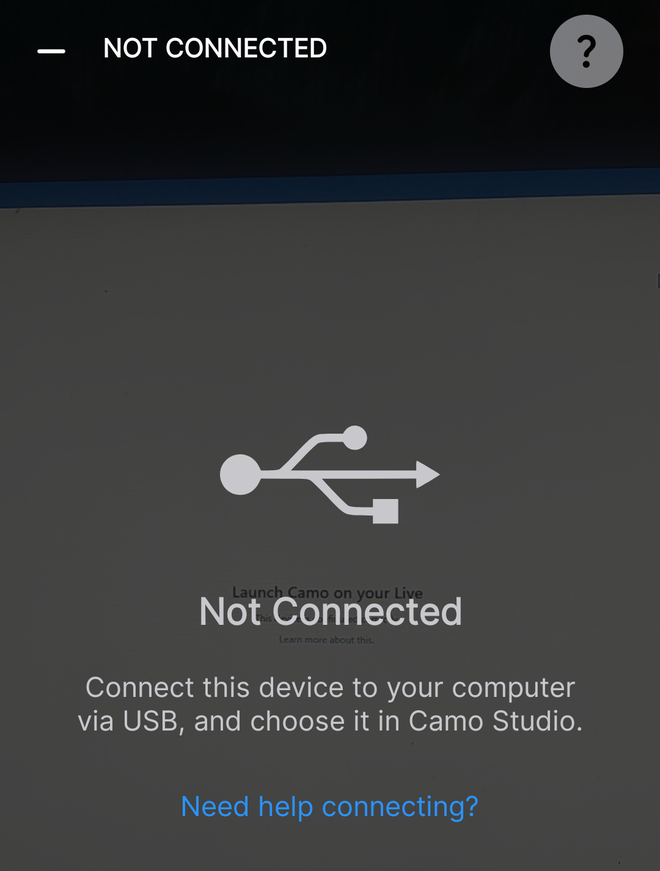
In case the Camo application on the smartphone does not detect, the developer recommends that users try unplugging and reinserting the USB cable.
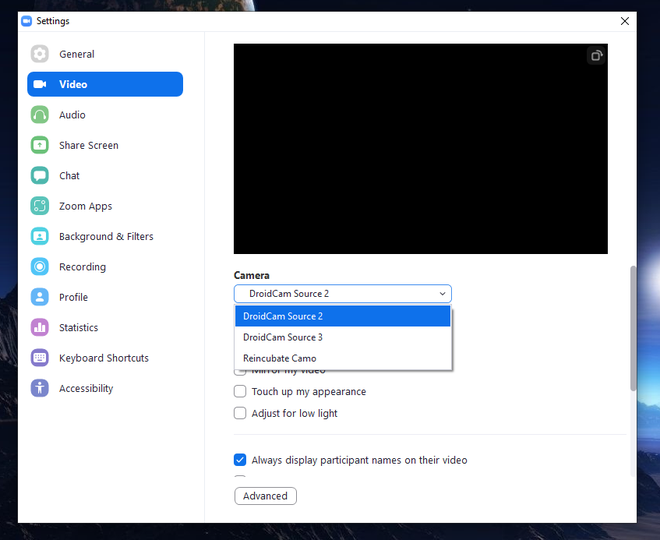
After successfully ‘simulating’ the webcam, the phone’s camera will display under the name of the ‘simulated’ webcam software. Users can use it directly in online meeting software like Zoom, Google Meet, Microsoft Teams without needing further adjustments.
Note that Android users need to enable the Developer Options, and turn on the “USB Debugging” option to use the Camo application. Go to Settings > About Phone > Software Information > More Information, and tap 7 times on the Build Number to enable Developer Options.
After that, go back to Settings > System, and you will see Developer Options. Continue accessing this to enable the “USB debugging” option. This guide is performed on a Vsmart phone; if you use a different OS version or smartphone brand, the process will be quite similar.
Summary