

TheNetTea
  • Trending Now
  • Creator Hub
    • IG Models & Influencers
    • Streamer Central
    • TikTok Stars
  • Net Vibe
    • Must-Watch
    • Screen Life
    • Viral Style
    • Lists & Quizzes
  • The Tea Room
    • Scandals & Exposés
    • Relationship Tea
    • Clapbacks & Feuds
No Result
View All Result
  • Trending Now
  • Creator Hub
    • IG Models & Influencers
    • Streamer Central
    • TikTok Stars
  • Net Vibe
    • Must-Watch
    • Screen Life
    • Viral Style
    • Lists & Quizzes
  • The Tea Room
    • Scandals & Exposés
    • Relationship Tea
    • Clapbacks & Feuds
No Result
View All Result
TheNetTea
No Result
View All Result
Home Creator Hub

Transform Your Windows Laptop into a Virtual Router to Share Internet and Files

A simple trick to safely share Internet and files on Windows.

September 28, 2021
in Creator Hub
0
0
SHARES
1
VIEWS
Share on FacebookShare on Twitter

In a family or in a company meeting room, you can use a wireless router as an intermediary device for sharing Internet connections and files with multiple computers. However, if for some reason the wireless router is broken, you can quickly turn a Windows computer into a very convenient alternative. Here’s how.
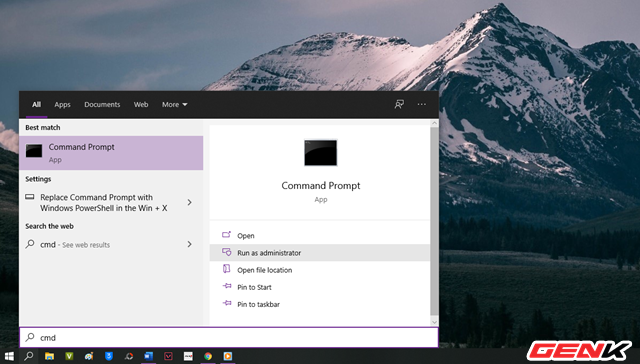
photo 1 1632824034482371077552

Start Command Prompt with the highest administrative privileges (Run as Administrator) from the Start Menu or the search window.
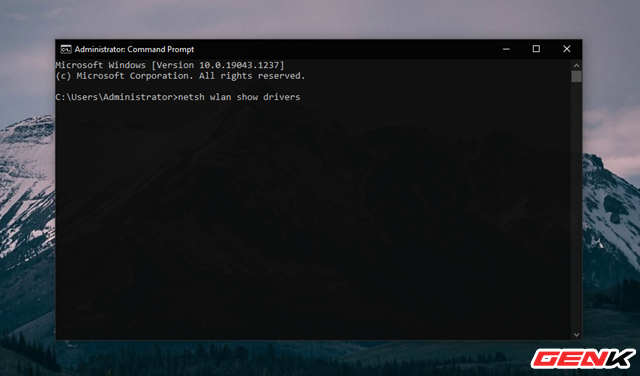
photo 1 16328240362061695429551

Enter the command “netsh wlan show drivers” into Command Prompt and press the ENTER key to execute.
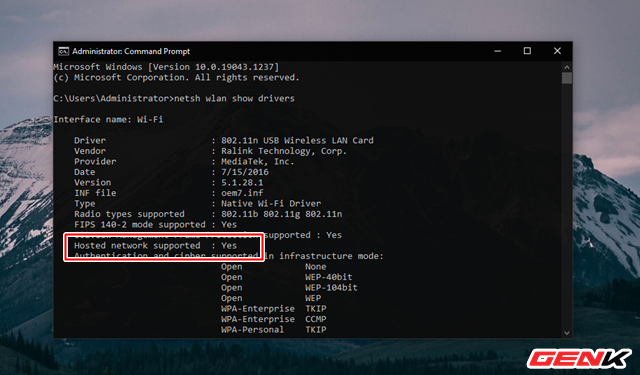
photo 2 16328240366421564121238

Wait a few seconds for the system to display the information from the command you entered. Look for the line “Hosted network supported“; if it says “Yes“, then your computer is capable of creating its own WiFi hotspot. If it says “No”, then your computer does not support it.
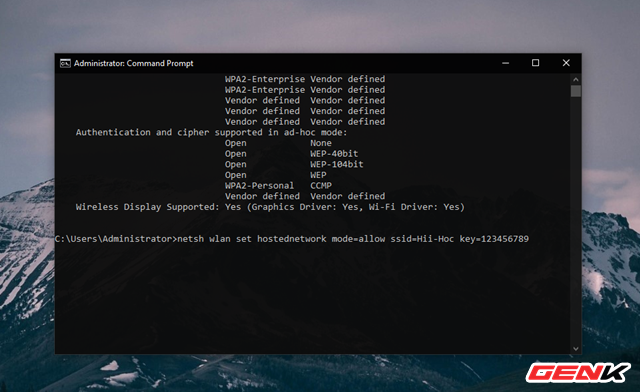
photo 3 1632824037181525630845

When you see the line “Hosted network supported” is “Yes”, you should enter the command “netsh wlan set hostednetwork mode=allow ssid=[WiFi-name] key=[password]“. Here, [WiFi-name] and [password] are the network name and password you choose. Then press ENTER.
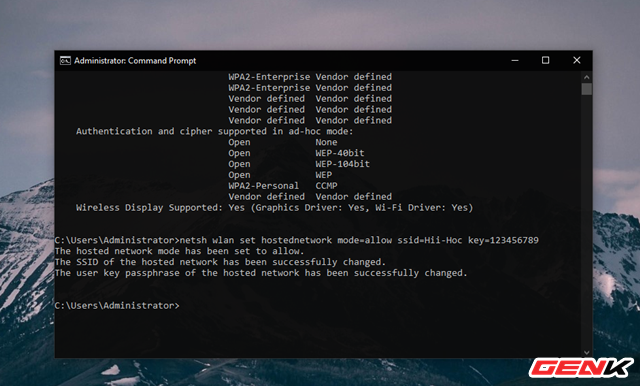
photo 4 16328240366971537770639

After the setup is done, Command Prompt will display some notifications for you.
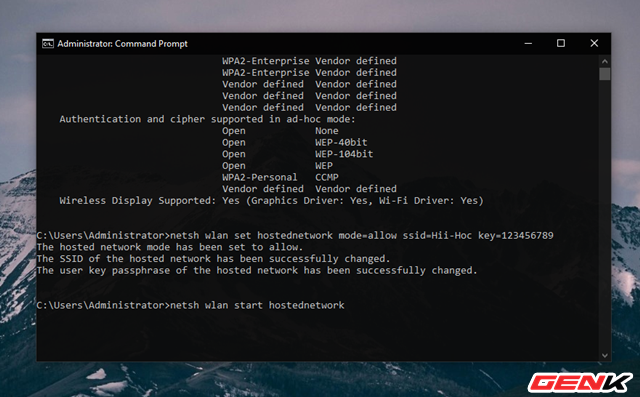
photo 5 16328240362401932061263

Now, enter the command “netsh wlan start hostednetwork” and press the ENTER key to start the virtual router you just created.
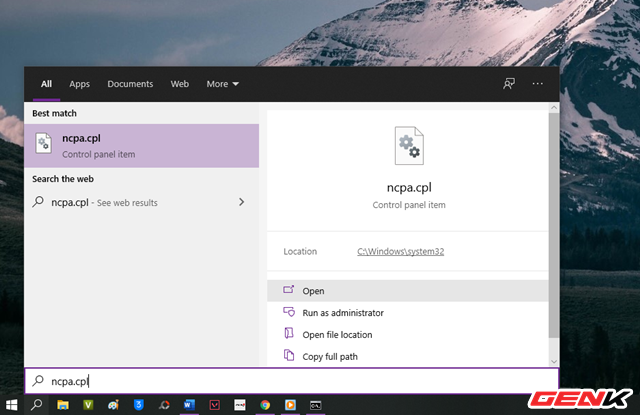
photo 6 16328240387241770641668

Once the virtual router is activated, continue to access Network Connections by entering the keyword “ncpa.cpl” into the search bar.
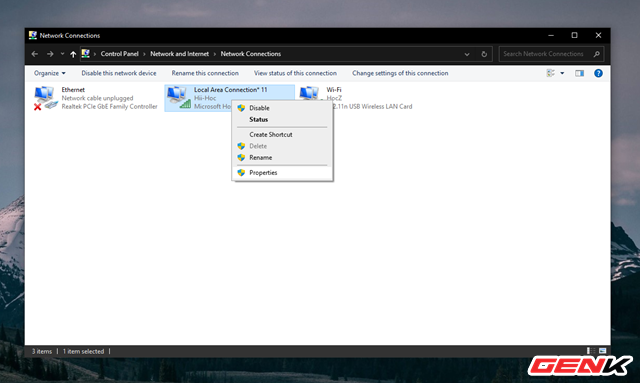
photo 7 16328240382241344948858

A list of connections will appear. Find the name of the connection you just created, right-click on it, and select “Properties”.
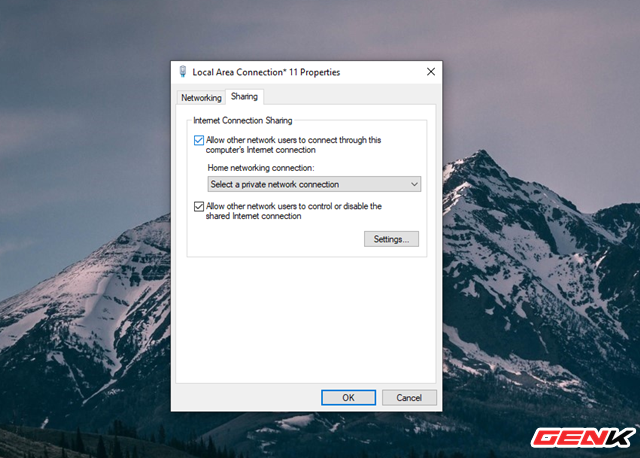
photo 8 1632824037697653955479

The Properties window will appear; click on the “Sharing” tab at the top and check the option “Allow other network users to connect through this computer’s Internet connection”.
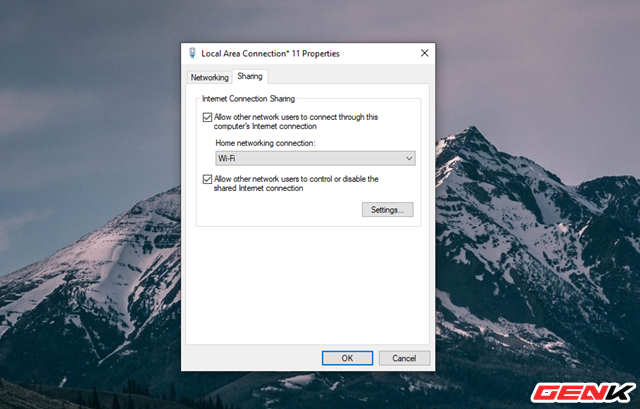
photo 9 16328240362631680493546

Then, click on the drop-down menu for “Home network connection” and select the sharing task that corresponds to the virtual router you set up earlier. Finally, click “OK” to save.
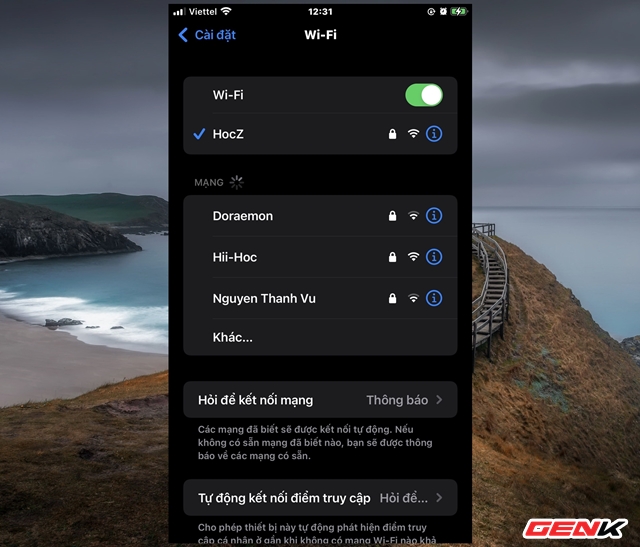
photo 10 16328240367161330850793

Now, you just need to open the device you want to use and connect to the “Router”. If you want your router to support VPN, you need to install and use OpenVPN on your computer as well.

It’s really simple, right?

Tags: computersgaming newsinternet communitytipsWindows

Related Posts

Streamer Central

Mai Linh Zuto’s Stunning Poses Leave Gamers Speechless

Streamer Central

Cosplaying Once for Eternity, the Sultry Female Streamer Pins Her Photo for Two Years, Climbing to the Top of Search Trends

Streamer Central

Sexy streamer panics as major incident occurs, burning over “60 million” live on air

Next Post

Spending Over Ten Million and a Month Learning English to Confess Love to a Neighbor, the Guy Was Stunned by the Outcome: "I Am Russian, I Don't Understand English"

Solo Pull-Up Challenge with an Orangutan: Gymnast Athlete Admits "The Match Was Unfair" Shocking Netizens

"Running Out of Breath" - YouTuber's Mukbang Journey for 6 Years Leaves Friends in Distress

Leave a Reply Cancel reply

Your email address will not be published. Required fields are marked *

Categories

  • Clapbacks & Feuds
  • Creator Hub
  • IG Models & Influencers
  • Lists & Quizzes
  • Must-Watch
  • Net Vibe
  • Relationship Tea
  • Scandals & Exposés
  • Screen Life
  • Streamer Central
  • The Tea Room
  • TikTok Stars
  • Trending Now
  • Uncategorized
  • Viral Style

Topics

beautiful girls gamers gaming news hot girl internet community Netizens online community social media Streamer YouTuber

Recent News

  • Hospitalized for Exhaustion, the Next Day the Famous Coser Still Attends an Event to Meet Deadlines
  • Mai Linh Zuto’s Stunning Poses Leave Gamers Speechless
  • A Series of Beauties in Single’s Inferno Exposed: All Are Pageant-Level Beauties, Who’s ‘Ordinary’ Here?

Category

  • Clapbacks & Feuds
  • Creator Hub
  • IG Models & Influencers
  • Lists & Quizzes
  • Must-Watch
  • Net Vibe
  • Relationship Tea
  • Scandals & Exposés
  • Screen Life
  • Streamer Central
  • The Tea Room
  • TikTok Stars
  • Trending Now
  • Uncategorized
  • Viral Style

Tags

beautiful girls gamers gaming news hot girl internet community Netizens online community social media Streamer YouTuber
  • About
  • Advertise
  • Careers
  • Contact

© 2025 TheNetTea. Spilling the Internet’s Hottest Tea.

No Result
View All Result
  • Home
  • Scandals & Exposés
  • IG Models & Influencers
  • Trending Now
  • Creator Hub
  • TikTok Stars
  • Clapbacks & Feuds
  • Streamer Central
  • Relationship Tea
  • The Tea Room

© 2025 TheNetTea. Spilling the Internet’s Hottest Tea.